IPTV Not Working: 20 Things to Check Before Contacting Your Provider
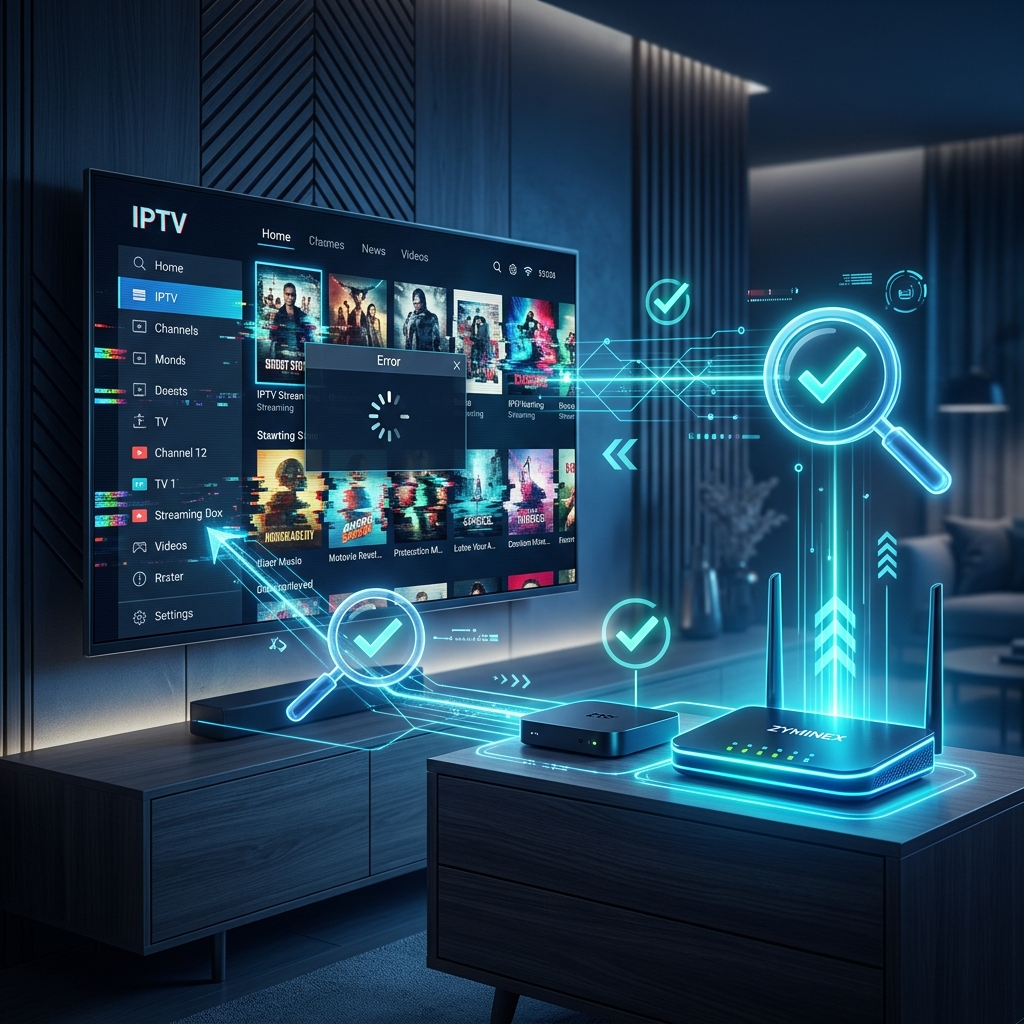
When your stream goes down, it is frustrating. However, the vast majority of streaming issues can be resolved at home without needing technical support. Before you assume the provider is offline, you should systematically eliminate local network and device issues.
Here are 20 things to check when your ZYMINEX IPTV service is not working as expected.
Experience ZYMINEX IPTV
Upgrade your entertainment with ultra-stable, anti-freeze streaming. Access premium live channels, sports, and VOD on all your favorite devices.
1. Check Your Internet Connection
Before anything else, verify your internet is actually working. Open a web browser or another streaming app like YouTube on the same device. If it fails to load, your internet connection is down, and the issue is not with the IPTV service.
2. Restart the Router
Your router handles all network traffic. Over time, its memory fills up, leading to dropped packets and IP conflicts. Unplug your router from the power outlet, wait 60 seconds, and plug it back in. This simple step fixes a massive percentage of connection issues.
3. Restart the Streaming Device
Whether you are using a Smart TV, a Firestick via our ZYMINEX installation guide, or an Android TV Box, restarting the device clears its temporary memory and resolves underlying network-state problems. Turn the device completely off and back on.
IPTV Not Working Troubleshooting
4. Run a Speed Test on the Device
A speed test on your phone means nothing if your TV is struggling. Run a speed test directly on the device you are using for IPTV. You need a highly stable connection of at least 15-20 Mbps for HD streaming, and 25-50 Mbps for 4K.
5. Check for ISP Throttling
Some Internet Service Providers intentionally slow down IPTV traffic during peak hours. If your speeds are fast but the stream still buffers, try connecting through a reputable VPN to encrypt your traffic and bypass ISP throttling.
6. Switch from Wi-Fi to Ethernet
Wi-Fi is susceptible to interference from walls, microwaves, and neighboring networks. If possible, hardwire your streaming device directly to your router using an Ethernet cable. If the problem disappears, your Wi-Fi network was the culprit.
7. Connect to the 5GHz Wi-Fi Band
If you must use Wi-Fi, ensure your device is connected to your router's 5GHz band, not the 2.4GHz band. The 5GHz band offers significantly faster speeds and less interference, which is crucial for live video streaming.
8. Test Another Device
If you are experiencing issues on your television, try loading the service on your smartphone using the same Wi-Fi network. If it works on the phone, the issue is specific to the TV or the IPTV app. For a detailed guide on this specific issue, read our IPTV Works on One Device but Not Another troubleshooting article.
Experience ZYMINEX IPTV
Upgrade your entertainment with ultra-stable, anti-freeze streaming. Access premium live channels, sports, and VOD on all your favorite devices.
9. Test Another Network (Mobile Data)
If the service fails on your home network, disconnect your phone from Wi-Fi and test the service using your cellular 4G/5G mobile data. If it works on mobile data but not Wi-Fi, your ISP or home network is actively blocking the connection.
10. Check Your Login Credentials
Typos happen. Verify your username, password, and portal URL. Ensure there are no accidental spaces before or after your credentials. A single wrong character will prevent the playlist from loading.
11. Verify Your Account Status
Has your subscription expired? Did your payment fail to process? Log into your provider's dashboard or check your emails to ensure your account is active and in good standing. You can manage your subscription easily on the ZYMINEX pricing page.
12. Check for Simultaneous Connections
Most basic plans allow for only one connection at a time. If you shared your password with a friend, or left the stream running in the bedroom while trying to watch in the living room, the server will block your connection.
 IPTV Network Connection Troubleshooting
13. Update Your IPTV Player App
Outdated applications can contain bugs or lack support for newer streaming protocols. Check your device's app store and ensure your IPTV player (like Smarters or Tivimate) is updated to the latest version.
14. Clear the App Cache
Over time, IPTV players accumulate cached data (like EPG images and channel logos) that can become corrupted and cause the app to crash. Go into your device settings, find your IPTV application, and select "Clear Cache". Do not click "Clear Data" unless you are prepared to log in again.
15. Try a Different IPTV Player
Sometimes an app update breaks functionality on specific devices. Download a different, highly-rated IPTV player app and input your credentials. If the stream works perfectly in the new app, the original application was the problem.
16. Change the Video Player Decoder
Inside your IPTV app's settings, look for an option to change the Video Decoder (Hardware vs. Software). If you are experiencing audio without video, or extreme stuttering, switching the decoder can often instantly resolve the compatibility issue.
17. Check Available Device Storage
Streaming sticks like the Amazon Firestick have very limited storage. If the storage is 99% full, the device cannot process temporary video buffers, leading to crashes and freezing. Delete unused apps to free up at least 1GB of space.
18. Update Device Firmware
Ensure your Smart TV, Firestick, or Android box has the latest system software installed. Operating system updates often include critical fixes for video playback and network stability.
19. Try a Lower Resolution Stream
If a 4K channel is buffering, switch to the 1080p HD version of the same channel. If the HD version works flawlessly, your network or device hardware cannot handle the massive data requirements of a 4K live stream. For more context, read our guide on IPTV 4K Buffering.
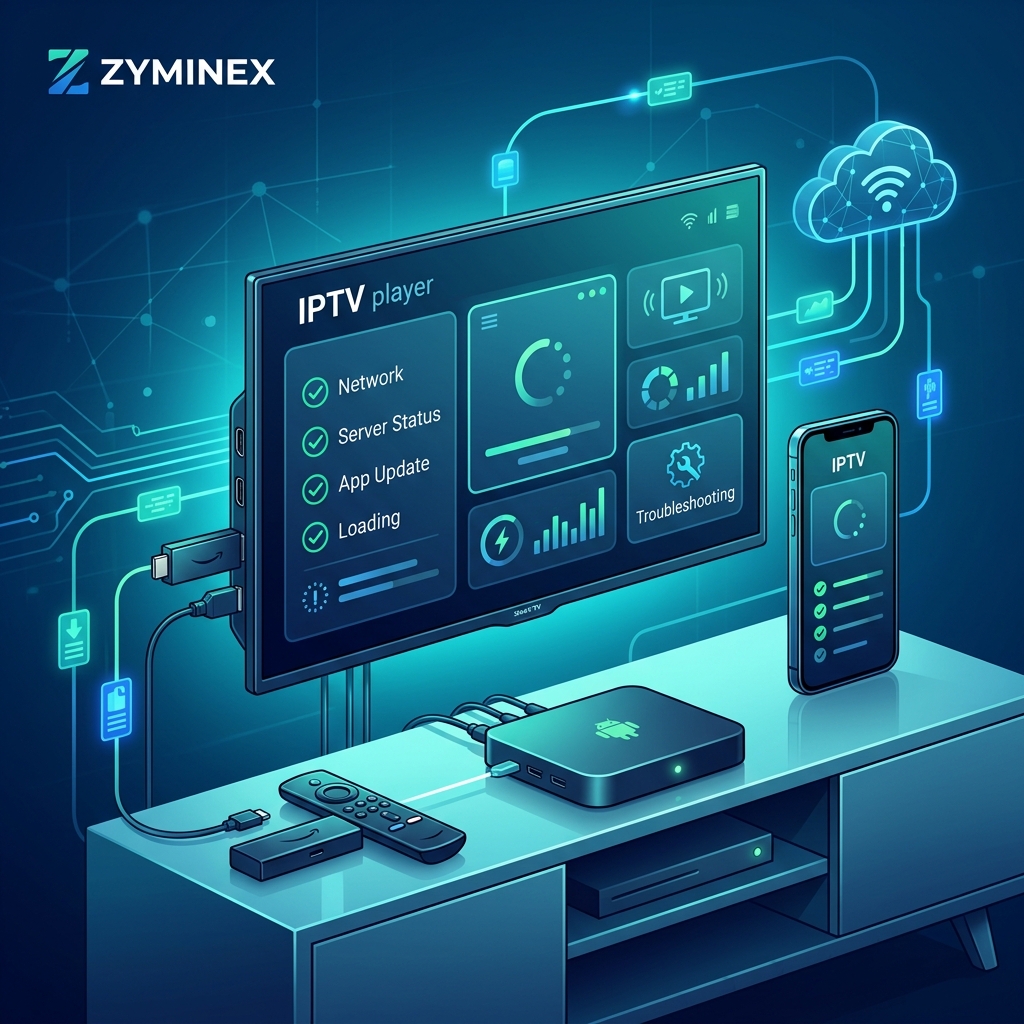
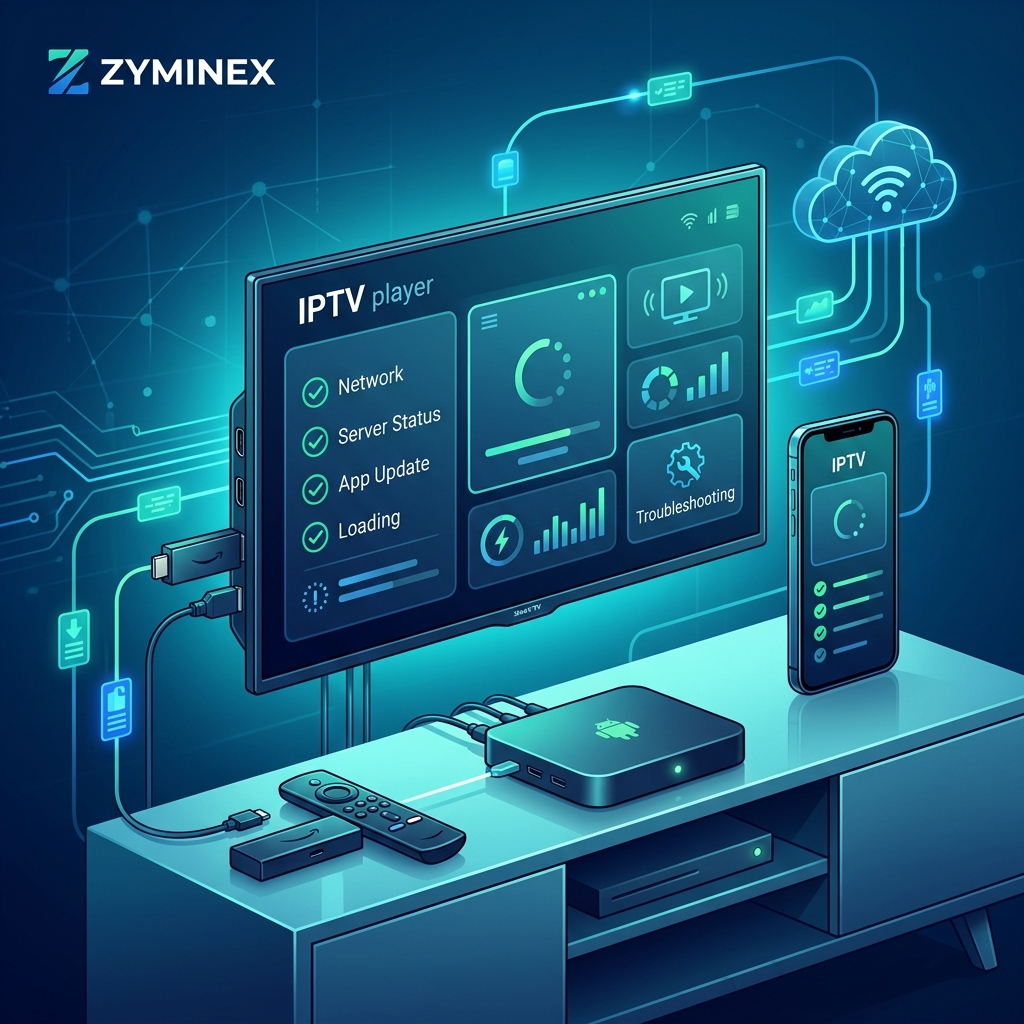 IPTV Device and Player Troubleshooting
20. Contact Support
If you have systematically completed all 19 steps above and the problem persists across multiple devices and networks, it is time to contact support. You have now isolated the problem to the provider's end.
When reaching out, provide the details of your diagnostic process. Tell them what device you are using, what app you are using, and what specific steps you have already taken.
At ZYMINEX IPTV, we are dedicated to providing a highly stable streaming experience. If you are experiencing issues with the ZYMINEX service, our contact ZYMINEX support team is ready to help 24/7. Before reaching out, check our ZYMINEX FAQ and make sure your ZYMINEX supported devices are configured correctly. We provide reliable streams and massive libraries of content, and we want to ensure you get the absolute best out of your choose the best IPTV service plan.