IPTV Works on One Device but Not Another: Complete Fix
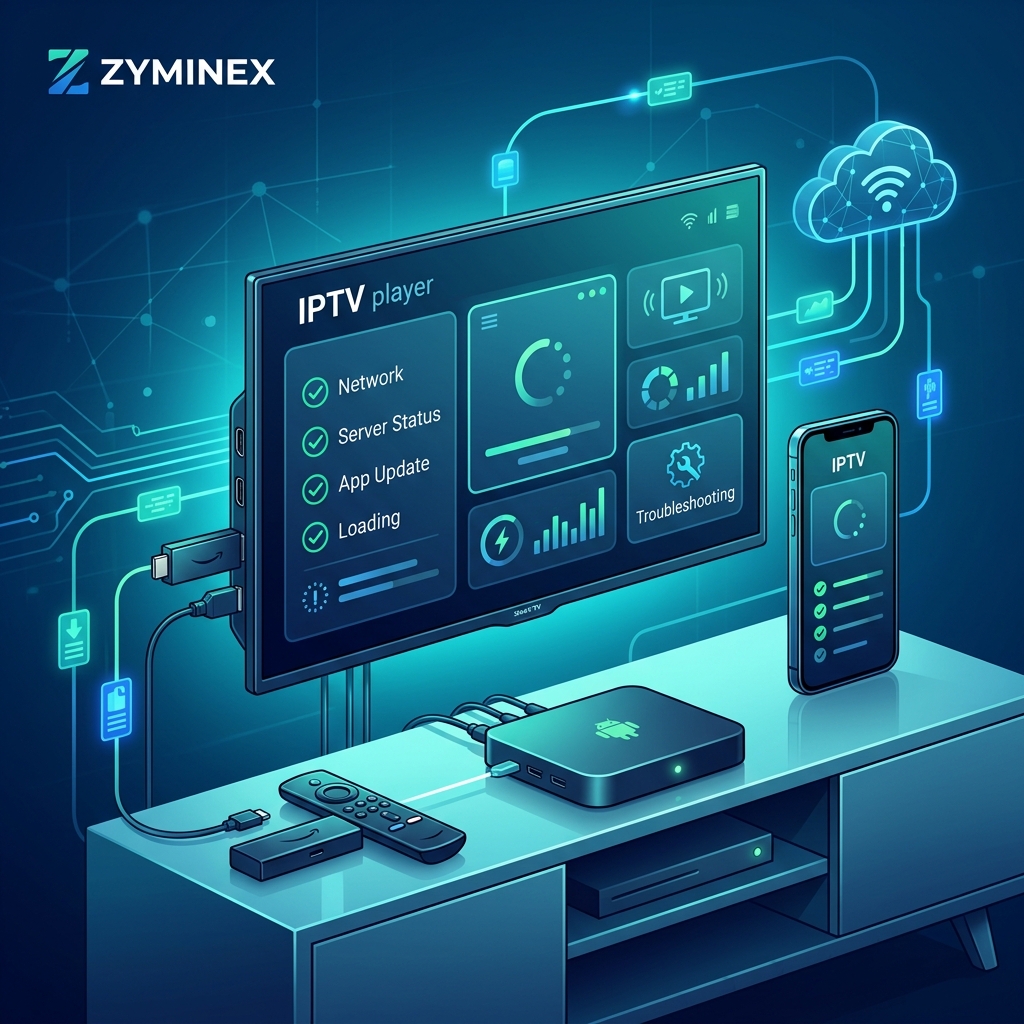
If IPTV works normally on one device but not another, this is useful information because it means the service itself may not be the only thing to investigate. In fact, comparing the two devices can help isolate the exact cause of the problem.
This comprehensive guide will help you diagnose exactly why your ZYMINEX IPTV service works on one screen but refuses to load, crashes, or buffers on another.
Experience ZYMINEX IPTV
Upgrade your entertainment with ultra-stable, anti-freeze streaming. Access premium live channels, sports, and VOD on all your favorite devices.
What Does It Mean When IPTV Works on One Device but Not Another?
When a stream works on your phone but fails on your Smart TV, or runs perfectly on a Firestick but buffers on an Android Box, it points to local differences. Here are the most likely scenarios:
Scenario 1: Works on Device A + Does Not Work on Device B
The problem is highly likely specific to Device B. You should investigate Device B's network, hardware, and application before contacting support.
Scenario 2: Works on Wi-Fi Device A + Fails on Wi-Fi Device B
Compare the Wi-Fi signal and network configuration. Device B might be in a Wi-Fi "dead zone" or using a slower network band.
Scenario 3: Works on Ethernet + Fails on Wi-Fi
If you hardwired a device and it works, but a Wi-Fi device fails, the wireless connection is a strong suspect.
Scenario 4: Works in Player A + Fails in Player B
If the service works in one app but fails in another on the same device, investigate the application's compatibility and configuration.
Scenario 5: Works in HD + Fails in 4K
Investigate the device capability, bitrate, network stability, and hardware decoding limitations.
Scenario 6: Works everywhere except one device
The affected device, app, or configuration becomes the primary troubleshooting target.
IPTV works on one device but not another troubleshooting
1. Check the Internet Connection on the Problem Device
Do not assume both devices have identical connectivity just because they are in the same house. Open another legitimate online service (like YouTube or Netflix) on the problem device. Check whether the device is connected to the internet at all, and compare the performance with the working device.
2. Compare Wi-Fi Signal Strength
Two devices in the exact same room can have drastically different wireless performance. Check the distance from your router, the number of walls between them, and any potential interference. Ensure both devices are connected to the 5GHz Wi-Fi band, which offers significantly higher speeds than the older 2.4GHz band.
3. Test the Problem Device With Ethernet if Supported
Ethernet can be highly useful as a diagnostic test. If your IPTV service works perfectly when the device is plugged directly into the router via an Ethernet cable, but fails on Wi-Fi, the wireless connection becomes a strong suspect. Check our ZYMINEX installation guide for details on optimizing device connections.
4. Compare Internet Speed and Stability
Both devices may have different network conditions. Run a speed test on both. Discuss download speed, latency, packet loss, stability, and network congestion. Do not treat a single speed test as absolute proof, but look for major discrepancies between the working and non-working devices.
5. Check the IPTV Player
The IPTV service and the IPTV player are different things. The working device may use a different IPTV player, a different player version, or different decoder settings. Test another compatible IPTV player where appropriate, but do not download suspicious applications. Stick to legitimate app stores.
6. Update the IPTV Application
The affected device may simply have an older application version that contains a bug or lacks support for newer streaming protocols. Use your platform's legitimate update mechanism to ensure the app is fully updated.
Experience ZYMINEX IPTV
Upgrade your entertainment with ultra-stable, anti-freeze streaming. Access premium live channels, sports, and VOD on all your favorite devices.
7. Update the Device Software
Operating-system differences can heavily affect compatibility. Check for software updates on your Smart TV, Fire TV, Android TV, or Android device. A pending system update can sometimes resolve underlying video playback bugs.
8. Confirm That the Device Is Supported
Not every IPTV player or service behaves identically across all hardware. Verify your operating system, device model, and application compatibility. You can find a list of optimized hardware on the ZYMINEX devices page.
9. Recheck the Login Information
Check your username, password, playlist details, and portal information. A typo or configuration difference on one device can cause the service to fail there while working elsewhere. Always double-check your credentials before assuming the service is down.
10. Check the Playlist or Account Configuration
The working device and the problem device may not have identical settings. Compare the playlist URL, account details, server/portal information, and refresh status. Ensure they perfectly match the details provided when you purchased your ZYMINEX pricing plan.
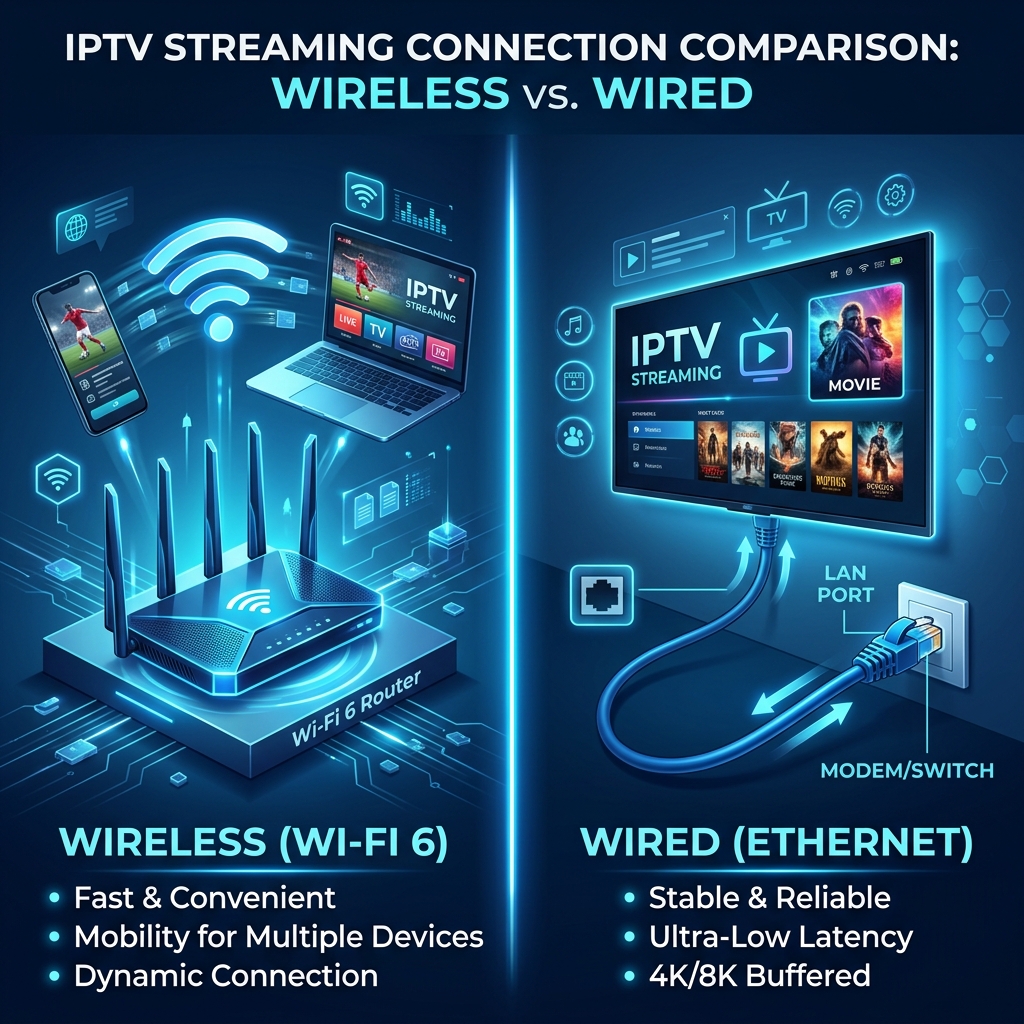 IPTV device network connection comparison
11. Clear the IPTV App Cache
Temporary cached data can sometimes become corrupted and cause unexpected behavior. Clear the cache on the problem device where supported. Be aware that clearing app data (rather than just cache) can remove saved configurations, so avoid doing that unless necessary.
12. Check Available Storage
Low storage space, background applications, and limited device resources can severely impact IPTV applications, especially on older hardware. Ensure your device has at least 1-2GB of free space to allow the app to cache video smoothly.
13. Check Video Decoder Settings
If your IPTV player provides decoder options (like hardware decoding vs software decoding), recommend testing supported settings one at a time. Hardware decoding is generally preferred, but codec compatibility varies by device. Do not recommend random advanced configurations.
14. Test HD Before 4K
If the problem occurs only with high-quality streams, test standard HD or Full HD. If HD works but 4K fails on the problem device, the issue may relate to the device's capability, network stability, bitrate limits, or hardware decoder. For more 4K tips, see our guide on IPTV 4K Buffering.
15. Compare VPN Settings
One device may have a VPN active while another does not. VPN routing can drastically change latency, routing, throughput, and connection stability. If you use a VPN, try a temporary comparison test (with and without) to determine whether it contributes to the problem on the specific device.
16. Restart the Problem Device
Restarting can clear temporary memory issues, app state bugs, network state glitches, and background processes. This simple step fixes a surprising number of device-specific errors.
17. Restart the Router
Perform a safe restart procedure according to your router manufacturer's instructions. Wait 60 seconds, turn it back on, then reconnect both devices and compare again.
18. Close Unnecessary Background Apps
Background processes can consume precious memory, CPU cycles, and network bandwidth. This is especially relevant on lower-powered streaming sticks. Force close any apps you aren't actively using.
19. Compare Both Devices Side by Side
Differences often reveal the cause. Use this checklist:
| Setting | Working Device | Problem Device |
|---|---|---|
| Internet connection | Check | Check |
| Wi-Fi/Ethernet | Compare | Compare |
| IPTV player | Compare | Compare |
| App version | Compare | Compare |
| Device software | Compare | Compare |
| Login details | Compare | Compare |
| Playlist | Compare | Compare |
| Decoder | Compare | Compare |
| Video quality | Compare | Compare |
| VPN | Compare | Compare |
20. Contact Support After Isolating the Problem
Support becomes much more useful when you can provide specific information. When you contact ZYMINEX support, provide your device model, IPTV player, app version, exact problem, whether another device works, and whether all channels or only some fail.
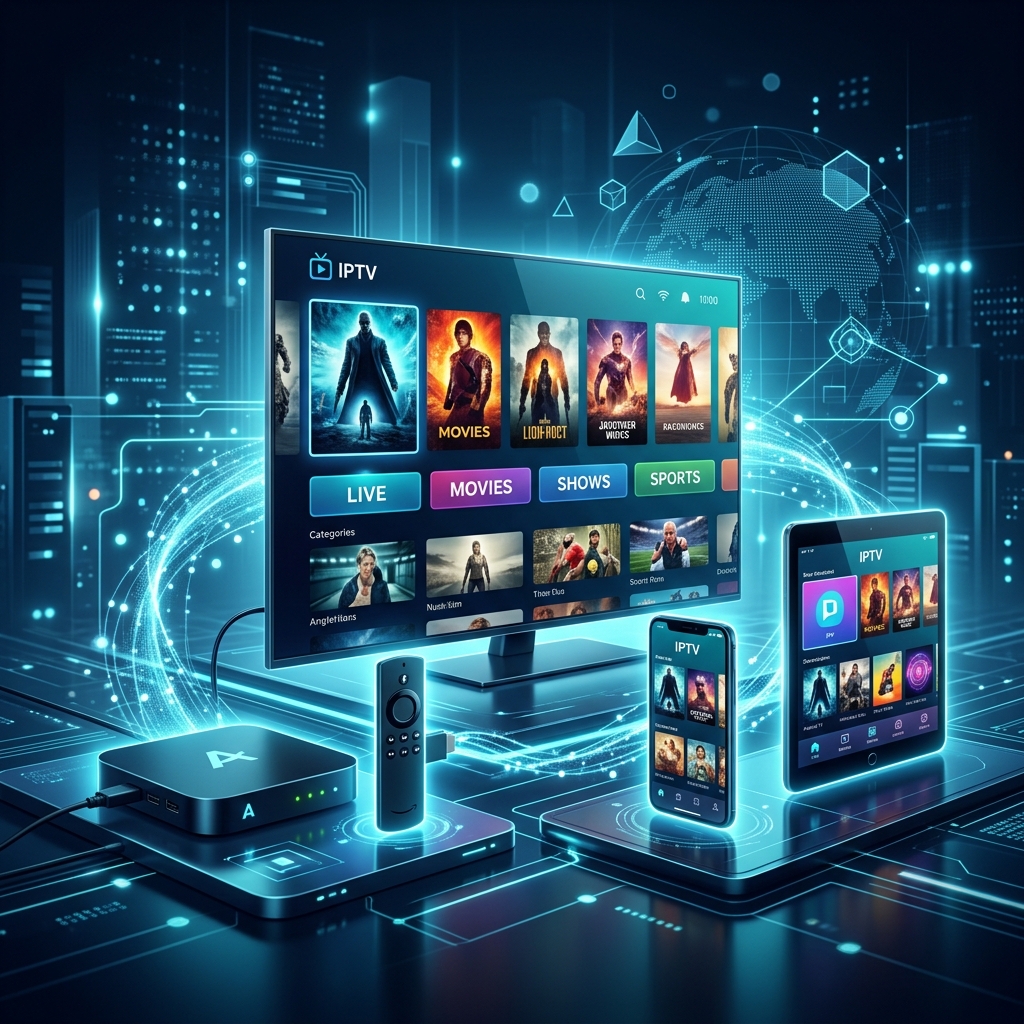 IPTV player and device compatibility troubleshooting
Device-Specific Troubleshooting
IPTV Works on Phone but Not Smart TV
Smart TV apps are often older or less frequently updated than mobile apps. Check the TV app compatibility, TV software version, and ensure the TV's Wi-Fi receiver is getting a strong signal.
IPTV Works on Smart TV but Not Firestick
Investigate the Firestick's network connection, app version, available storage, and device software. Firesticks often run out of storage space, which causes players to crash. A simple restart often helps.
IPTV Works on Firestick but Not Android TV
Check the Android TV software, player compatibility, and decoder settings. Some Android TV boxes lack proper hardware decoding for certain IPTV streams.
IPTV Works on One Smart TV but Not Another
Different TV operating systems (like Tizen vs WebOS) run entirely different apps. You are likely dealing with different hardware capabilities, different apps, and different Wi-Fi receiver strengths.
The Fastest Way to Find the Problem
Changing one variable at a time makes diagnosis much easier:
- Test 1: Same IPTV account → different device.
- Test 2: Same network → different device.
- Test 3: Same device → different IPTV player.
- Test 4: Same player → different video quality.
- Test 5: Wi-Fi → Ethernet where supported.
- Test 6: With existing VPN configuration → without it where appropriate.
IPTV Device Troubleshooting Diagnosis Table
| Situation | Most Likely Area to Investigate |
|---|---|
| Works on phone, not TV | TV app, compatibility, TV network |
| Works on TV, not Firestick | Firestick software, app, storage |
| Works on Firestick, not Android TV | Player, decoder, Android TV |
| Works on Ethernet, not Wi-Fi | Wi-Fi/network |
| Works in one player, not another | Player/configuration |
| HD works, 4K fails | Device, bitrate, network, decoder |
| Login works on one device only | Account/configuration |
| Only one channel fails | Individual stream |
| All channels fail on one device | Device/app/network |
| All devices fail | Network/account/service |
Is the IPTV Provider Actually the Problem?
If the exact same account works normally on another device, investigate local differences first. A provider-side issue becomes more plausible if multiple devices fail, multiple channels fail, the same problem occurs across different players, internet connectivity is confirmed, and the issue persists across different network conditions.
Troubleshooting ZYMINEX IPTV Across Different Devices
At ZYMINEX, we pride ourselves on delivering a robust and highly compatible service. The ZYMINEX IPTV service is designed to work seamlessly across a massive range of hardware. By following this guide, you can ensure you get the absolute most out of your ZYMINEX features. If you ever run into a roadblock, explore the ZYMINEX FAQ or reach out to our team.