IPTV Channel Switching Slow in 2026: Why Channels Take Too Long to Load and How to Fix It
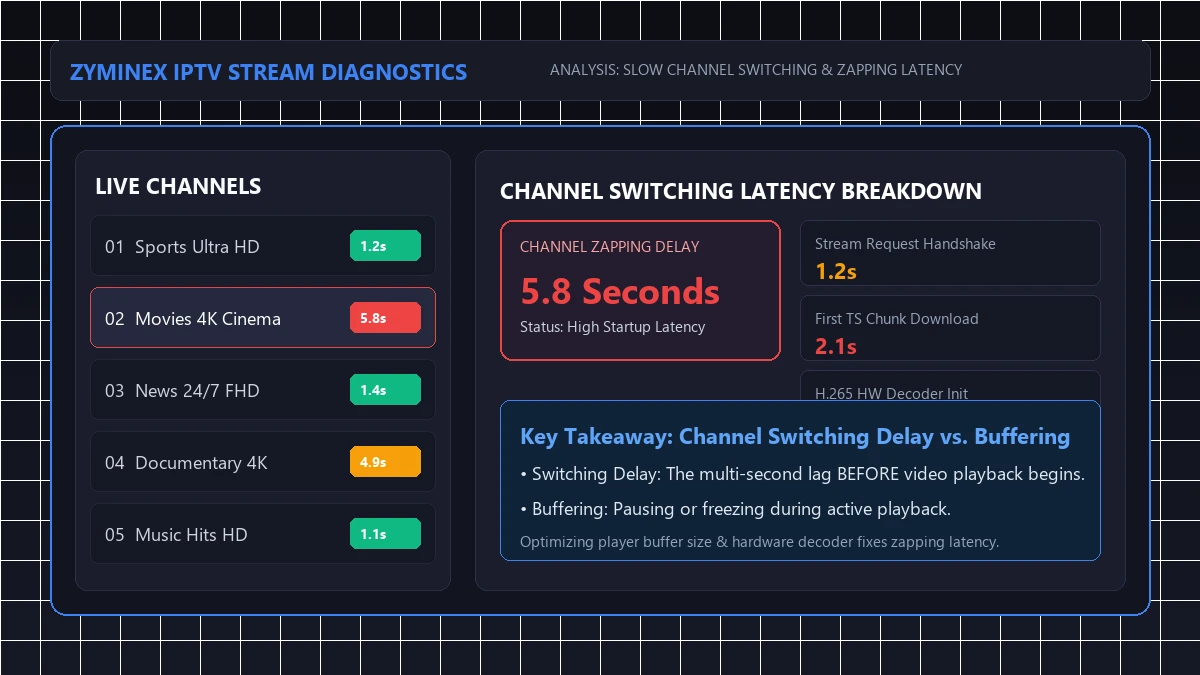
When switching channels on traditional TV, playback begins almost instantly. On IPTV, selecting a new channel can cause a delay of four to ten seconds before video appears. If you see a loading wheel or dark screen when changing channels, you are dealing with slow IPTV channel switching.
It is important to clarify immediately that slow channel switching is not the same thing as IPTV buffering:
- Channel switching delay (Zapping latency): The multi-second delay that occurs before playback begins when changing channels. Once the stream starts, it runs smoothly.
- IPTV Buffering: Pausing, stuttering, or repeated spinning wheels that occur during active video playback.
Understanding this distinction is key: buffering fixes like lowering resolution or changing VPN servers won't fix channel startup delays caused by decoder setup, buffer size, or Wi-Fi latency.
In this guide, ZYMINEX IPTV explains channel startup mechanics, why zapping delays occur, how to test your setup, and 15 fixes to accelerate channel switching on Smart TVs, Firesticks, Android TV boxes, and mobile devices.
Experience ZYMINEX IPTV
Upgrade your entertainment with ultra-stable, anti-freeze streaming. Access premium live channels, sports, and VOD on all your favorite devices.
What Is IPTV Channel Switching Speed?
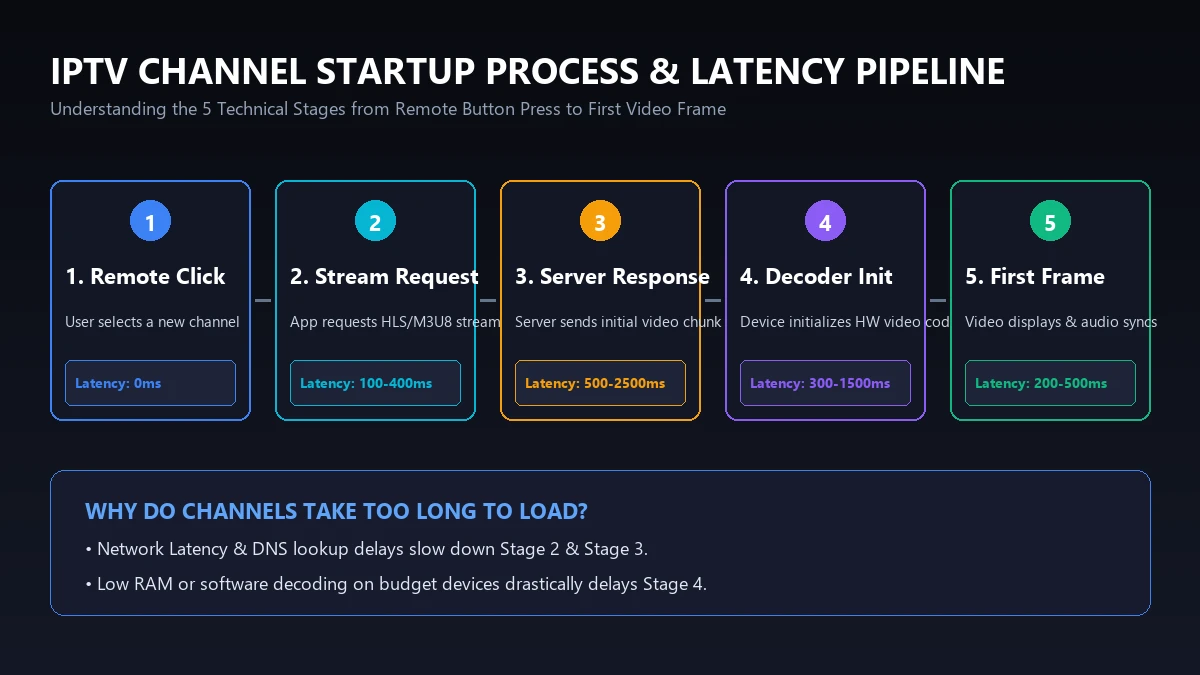
IPTV channel switching speed—also called zapping latency or stream startup delay—is the time elapsed between pressing a remote button and seeing the first synchronized video frame on screen.
Unlike broadcast TV where all channels stream simultaneously over cable, IPTV uses an on-demand stream architecture. Switching channels requires your player to terminate the previous stream connection and initiate a new digital handshake.
The 8-Stage IPTV Channel Startup Sequence
When changing channels on your IPTV app, your device and network execute eight steps:
- User Input Trigger: You press the channel button or select a channel from the Electronic Program Guide (EPG).
- Stream Termination & Request: The player closes the active transport stream and sends a new HTTP/HLS request or Xtream API call to the server.
- DNS Lookup & Server Handshake: Your device resolves the server IP and opens a socket connection with the stream source.
- Manifest Parsing: The player downloads and parses the latest .m3u8 manifest file to locate video segments.
- Initial Segment Download: The device downloads the first incoming video chunks (.ts or .fmp4) into the local buffer.
- Decoder Initialization: The hardware or software video decoder initializes the codec (H.264 or H.265).
- Keyframe (I-Frame) Decoding: The decoder waits for the first complete keyframe (I-frame) to render the video picture.
- Playback Synchronization: Audio and video tracks align, and rendering begins on your display.
If any stage in this pipeline experiences a bottleneck, your overall IPTV channel startup delay increases significantly.
Why Channel A Starts in 1 Second While Channel B Takes 6 Seconds
Some channels load instantly while others take seconds because live streams have distinct technical characteristics:
- Resolution and Bitrate: SD or 720p HD channels require smaller initial buffers, enabling faster decoding than 4K streams.
- GOP (Group of Pictures) Length: Encoders insert keyframes (I-frames) at set intervals. If an encoder uses a 4-second GOP structure, your player waits up to 4 seconds to receive the initial keyframe.
- Source Server Proximity: Channels hosted on edge CDNs establish faster TCP handshakes than niche channels on distant servers.
Channel Switching Delay vs. Buffering
Mixing up channel startup delay with mid-stream buffering leads to incorrect troubleshooting. Consider how these two issues differ across common streaming scenarios:
| Streaming Symptom | Initial Zapping Delay | Playback Stability | Primary Root Cause |
|---|---|---|---|
| Scenario 1: Ideal Performance | Fast (1–2 seconds) | Rock-solid smooth | Healthy network, fast decoder, optimized player |
| Scenario 2: Slow Zapping Only | Slow (5–8 seconds) | Smooth after start | Player buffer setting, slow DNS, hardware decoding delay |
| Scenario 3: Buffering Only | Fast (1–2 seconds) | Pauses every 30s | ISP throttling, low download bandwidth, Wi-Fi interference |
| Scenario 4: Severe Degradation | Slow (6+ seconds) | Frequent freezing | Underpowered TV box, severe network congestion, dying router |
If your streams run smoothly after starting, your internet speed is likely fine, but your slow channel zapping IPTV experience is being throttled by stream handshakes, cache bloat, or decoder configuration.
Why IPTV Channel Switching Is Slow
Understanding why IPTV channels take too long to load requires analyzing four components: network latency, player performance, device hardware, and stream encoding architecture.
1. Slow Stream Initialization and Handshake
When changing channels, your IPTV app cannot start playback until it receives enough video data to fill its initial buffer. If the buffer requirement is set too high, the app holds back video playback for several seconds until 5 to 10 seconds of video are stored in memory.
2. Network Latency and DNS Resolution Delay
Raw download speed measures throughput, but network latency (ping) and jitter determine request responsiveness. If your DNS takes 300ms to resolve domain names, that latency multiplies across requests, causing an IPTV channel loading delay.
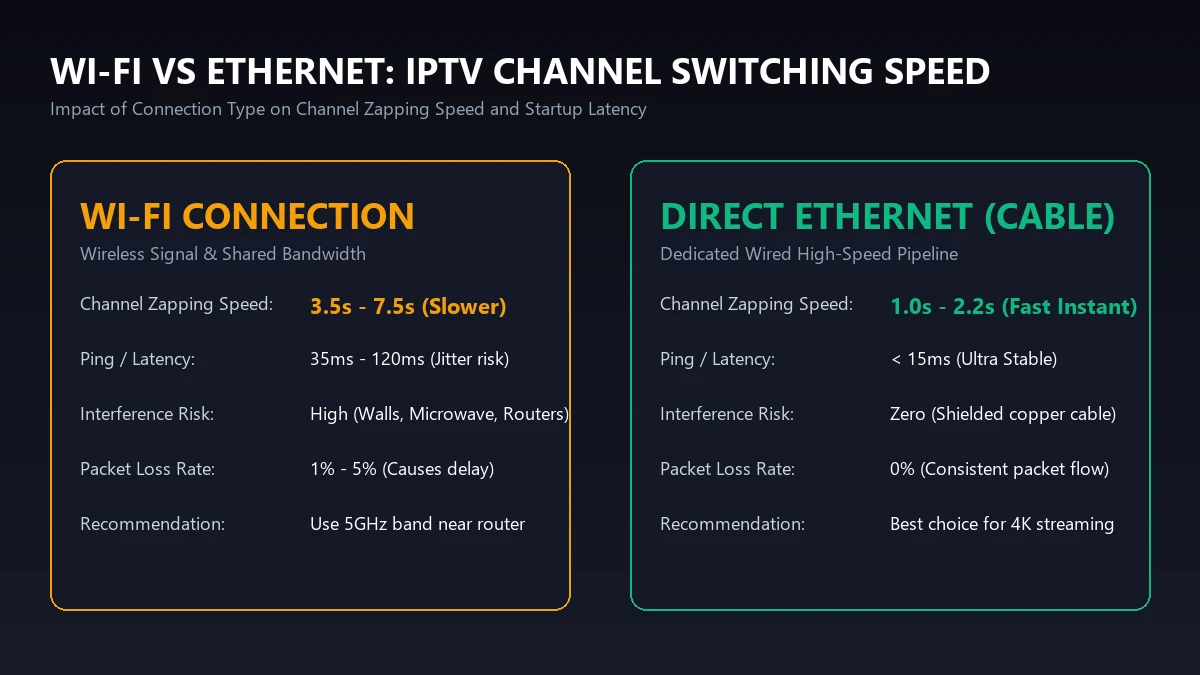
3. Wi-Fi Signal Degradation and Bandwidth Jitter
Interference from appliances, walls, and neighboring networks causes packet loss. When packet loss happens during a channel switch, your device re-requests missing headers, delaying video rendering.
4. IPTV Player Performance and Architecture
Sub-optimal player apps may parse playlists inefficiently, reload EPG data on every channel swap, or lack native hardware acceleration.
IPTV Channel Switching Delay on Smart TV
5. Hardware Limitations of Older Streaming Devices
Older Firesticks, budget Smart TVs, and cheap Android boxes suffer from limited RAM (1GB or less) and slow processors. Initializing an H.265 stream on weak hardware spikes CPU usage to 100%, causing hardware delays.
6. High-Bitrate and 4K Stream Heavyweight Data
4K Ultra HD broadcasts transfer far more data per frame than 1080p streams. Because 4K uses larger segment files, your device processes a heavier payload before parsing keyframes. 4K channels require capable hardware decoders and low network latency for fast zapping.
7. Video Codec and Hardware vs. Software Decoder Conflicts
Live streams use codecs like H.264 or H.265. If your player uses Software Decoding (SW), your CPU handles rendering manually, causing slow zapping. Hardware Decoding (HW) offloads rendering to the GPU, dramatically reducing zapping latency.
8. Server Response Time and CDN Routing
If specific international or sports channels exhibit slow startup times while local channels open instantly, the stream source may be located on a distant server or experiencing high request volume.
9. Application Cache Accumulation and State Bloat
Over time, IPTV apps accumulate cache files, logos, and EPG data. Corrupted or bloated cache degrades responsiveness, delaying channel initialization.
How to Test Whether Channel Switching Is Actually Slow
Diagnose your setup using these six practical diagnostic tests:
Test 1 — Compare 5 to 10 Different Channels
Switch through news, sports, entertainment, and movie channels. Note whether IPTV channels are slow to start across the whole playlist or only on specific HD channels.
Test 2 — Compare Standard HD vs. 4K Channels
Tune to an HD channel (720p or 1080p) and measure startup time. Then switch to a 4K channel. If HD opens in under 2 seconds while 4K takes 7 seconds, your bottleneck relates to device decoding or high-bitrate buffer requirements.
Test 3 — Test a Second Compatible IPTV Player
Install an alternative IPTV player from your official app store (such as Tivimate or IPTV Smarters). Load your playlist and compare switching speeds. If the second app switches instantly, your original app's configuration is responsible.
Test 4 — Compare Performance Across Devices
Test your IPTV subscription on a smartphone or tablet connected to the same Wi-Fi network. If your phone switches channels in 1.5 seconds but your Smart TV takes 6 seconds, the issue relates to your TV processor. For details, explore our guide on IPTV Works on One Device but Not Another.
Test 5 — Compare Wi-Fi against Direct Ethernet
Connect your streaming box or TV directly to your router using an Ethernet cable. If zapping speed improves instantly, wireless interference and packet loss were causing your startup delays.
Test 6 — Test During Off-Peak vs. Peak Viewing Hours
Compare zapping speeds at 2:00 PM vs. 8:00 PM on weekends. If channel switching slows down across all channels only during major events, network congestion or ISP throttling may be affecting your connection.
 IPTV Stream Startup Process from Channel Selection to Playback
How to Fix Slow IPTV Channel Switching
Follow these 15 practical troubleshooting steps to achieve faster channel zapping speeds:
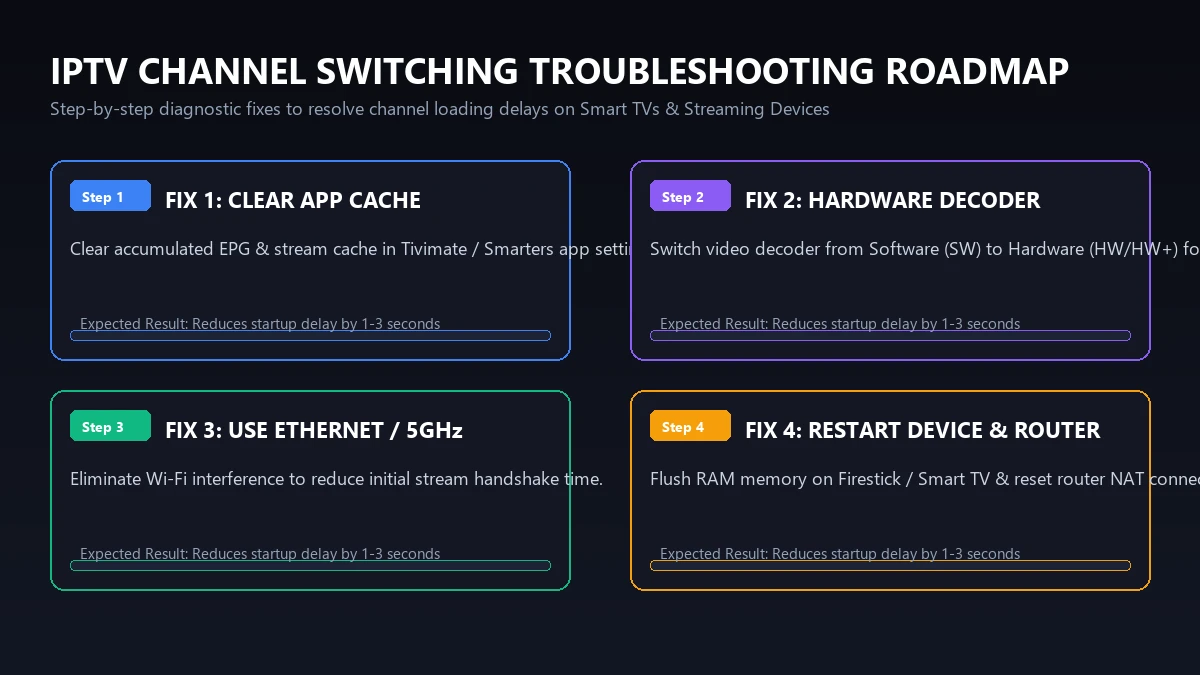
1. Restart the IPTV Player Application
Force close your IPTV app through device settings and re-open it to clear temporary RAM buffers and reset active socket connections.
2. Restart the Streaming Device
Unplug your streaming device for 60 seconds and plug it back in to flush system memory and close background processes.
3. Update the IPTV Player
Install available updates from your device's official app store to fix performance bugs and memory leaks.
4. Clear the Application Cache
Go to Settings > Apps > Your IPTV App > Clear Cache. This removes temporary data without deleting playlists or account details.
5. Improve Wi-Fi Conditions
Connect to your router's 5GHz Wi-Fi band instead of 2.4GHz for lower latency and higher throughput. Keep your router away from walls and electronics.
6. Test Direct Ethernet Connection
Hardwiring via Ethernet eliminates Wi-Fi jitter and packet loss, ensuring instant DNS lookup and segment downloads.
7. Close Background Applications
Running background apps on low-RAM devices consumes CPU cycles needed for decoding. Force-stop unused applications.
8. Free Up Device Storage
Keep at least 1.5GB of free storage so your device operating system can manage virtual memory efficiently.
9. Test a Different Compatible Player
Switch to a top-tier app like Tivimate or IPTV Smarters Pro for faster zapping performance. Always download from official stores.
10. Test a Lower-Bitrate Stream
In player settings, set initial Buffer Size to Small or None. This instructs the player to render video immediately upon receiving the keyframe, reducing IPTV channel change delay.
11. Check Video Decoder Settings
In playback settings, set Video Decoder to Hardware (HW or HW+). Hardware decoding offloads processing to the GPU, cutting rendering time in half.
12. Restart the Router
Reboot your router to clear IP conflicts. Change DNS servers to Cloudflare (1.1.1.1) or Google (8.8.8.8) to accelerate domain resolution.
13. Compare With Another Network
Connect your device to a mobile 4G/5G hotspot. If channel zapping is faster on mobile data, your ISP is throttling streaming traffic.
14. Check Whether Only Specific Channels Are Slow
If specific channels zap slowly while others load in 1.5 seconds, document the channel name to isolate issues with individual stream sources.
15. Contact Provider Support With Useful Information
If delays persist across devices, contact technical support. Provide your device model, app version, network type, download speed, and affected channels.
At ZYMINEX IPTV, our infrastructure is engineered for low latency and high availability. You can review our platform specs on the ZYMINEX features page or reach out directly via our contact ZYMINEX support team for assistance.
 Wi-Fi and Ethernet Comparison for IPTV Streaming
How to Improve IPTV Channel Switching on Different Devices
Different hardware platforms utilize distinct operating systems, memory architectures, and video decoders. Here is how to optimize zapping speed on your specific device:
Smart TVs
Built-in Smart TV processors are primarily designed for display processing rather than media decoding.
- Keep TV OS Updated: Install system software updates regularly.
- Disable TV Sleep Mode Cache: Disable instant-on settings that keep frozen app states in TV memory.
- Use Ethernet Adapters: If your TV lacks a Gigabit port, use a USB-to-Ethernet adapter or solid 5GHz Wi-Fi.
Firestick / Streaming Sticks
Amazon Firesticks are compact devices requiring clean memory management.
- Clear App Cache Frequently: Firesticks accumulate cache rapidly due to limited storage.
- Use OTG Ethernet Adapter: Add an Amazon Ethernet adapter for a direct wired connection.
- Avoid Overfilled Storage: Keep at least 1.5GB of free space. Learn setup in our ZYMINEX installation guide.
Android TV Boxes
Android TV boxes offer high performance and flexible decoder configurations.
- Enable HW+ Decoding: Use hardware-plus acceleration in players like Tivimate.
- Set Static IP Address: Assign a static IP and custom DNS (1.1.1.1) in network settings for rapid DNS resolution.
- Choose Certified Devices: Stick to certified Android TV devices with dedicated GPU hardware. Check compatibility on our ZYMINEX supported devices page.
Phones and Tablets
Mobile devices feature powerful CPUs and high-speed Wi-Fi chips, making them ideal benchmark tools.
- Keep App Updated: Update your mobile IPTV player via Google Play or Apple App Store.
- Disable Battery Saver for IPTV App: Ensure battery optimization settings do not throttle CPU speeds while streaming.
How Fast Should IPTV Channel Switching Be?
Digital IPTV streaming involves compression algorithms and network transmission. Realistic benchmark expectations for channel zapping speeds in 2026:
- Optimal Performance (1.0 – 2.5 Seconds): High-speed Ethernet connection, modern streaming box (Nvidia Shield / Firestick 4K Max), hardware decoding enabled, low buffer setting.
- Standard Performance (2.5 – 4.0 Seconds): Good 5GHz Wi-Fi connection, standard HD stream, midrange Smart TV or streaming stick.
- Sluggish / Delayed Performance (4.5 – 8.0+ Seconds): Weak 2.4GHz Wi-Fi, underpowered TV box, software decoding, oversized initial buffer setting, or bloated app cache.
Avoid believing marketing claims promising instant zapping or zero delay. A brief 1-to-2 second startup buffer is a natural characteristic of secure, high-bitrate digital video stream decoding.
When the IPTV Provider May Be the Problem
While 80% of channel switching delays stem from local network setup and device configuration, stream-side factors can occasionally cause startup latency. You can attribute delays to the server or provider if:
- Uniform Delay Across All Hardware: The exact same channels take 6+ seconds to start on your phone, Smart TV, and PC simultaneously.
- Persistent Delay Across Different Networks: The issue occurs identically on home broadband, Wi-Fi, Ethernet, and 5G mobile data.
- Multiple Players Yield Identical Delays: Tivimate, IPTV Smarters, and IBO Player all show the exact same startup latency on the same stream.
- Specific Channel Server Congestion: Only a specific cluster of channels (e.g., international sports streams during a final match) exhibit startup delays, while all other live channels load in 1.5 seconds.
If you observe these symptoms, document your findings and contact support so engineers can inspect stream relay nodes.
Quick Troubleshooting Checklist
Use this concise, scannable checklist whenever you experience slow channel loading times:
- Restart IPTV Player: Force close and restart the application.
- Power Cycle Device: Unplug TV/Firestick for 60 seconds.
- Clear App Cache: Clear cache in device app settings.
- Check Video Decoder: Switch player decoder to Hardware (HW/HW+).
- Adjust Buffer Size: Set initial buffer to Small or Low.
- Switch to 5GHz Wi-Fi / Ethernet: Eliminate wireless interference.
- Restart Router: Reset router and update DNS to 1.1.1.1.
- Free Up Device Storage: Maintain at least 1.5GB of free space.
- Close Background Apps: Force-stop unused background applications.
- Test Alternative Player: Compare speeds on Tivimate or Smarters.
- Compare HD vs 4K: Check whether delay affects only 4K channels.
- Test Second Network: Verify performance on 5G mobile data.
 IPTV Channel Switching Troubleshooting on Streaming Devices
Experience ZYMINEX IPTV
Upgrade your entertainment with ultra-stable, anti-freeze streaming. Access premium live channels, sports, and VOD on all your favorite devices.
Frequently Asked Questions
Summary & Next Steps
Slow IPTV channel switching can ruin an otherwise great viewing experience. By systematically eliminating Wi-Fi interference, setting your IPTV player to hardware decoding, reducing initial buffer sizes, and keeping your device memory clean, you can reduce channel zapping delays down to 1.5–2 seconds.
If you are looking for a high-performance streaming platform built on low-latency infrastructure, explore the ZYMINEX pricing plans today. Have questions about setting up your devices? Check our comprehensive ZYMINEX FAQ, review our full Why Does IPTV Keep Buffering? troubleshooting guide, or read our troubleshooting article on IPTV Not Working to ensure optimal streaming stability across all your screens. If you're comparing providers, our guide on how to choose the best IPTV service explains everything you need to know.