IPTV Audio and Video Out of Sync in 2026: Causes, Fixes and Lip-Sync Solutions
When streaming live television or movies over an internet protocol network, few issues are as frustrating as watching a broadcast where dialogue does not align with visual movements. Whether an actor's lips move seconds before sound is heard, or commentary on a live sports match reacts to a goal after it appears on screen, you are dealing with IPTV audio and video out of sync.
This audio/video synchronization issue—often called lip-sync delay, audio lag, or sound misalignment—can ruin an enjoyable viewing session.
It is important to establish immediately that IPTV audio delay is not the same problem as IPTV buffering:
- Audio/Video Lip-Sync Issue: The video stream plays smoothly without freezing, but the audio and video frame tracks are misaligned.
- IPTV Buffering: The stream freezes, stutters, or displays a loading icon due to network congestion or server packet loss.
- Channel Switching Delay: A temporary multi-second delay that occurs only while a new channel initializes its stream handshake.
Because lip-sync issues differ from buffering, traditional fixes like lowering stream resolution or rebooting your modem won't realign out-of-sync sound.
In this technical guide, ZYMINEX IPTV explains why IPTV sound and picture become unsynchronized, how to test each component in your playback chain, and 15 practical fixes to resolve audio delay across Smart TVs, Firesticks, Android TV boxes, Bluetooth headphones, and soundbars.
What Does It Mean When IPTV Audio and Video Are Out of Sync?
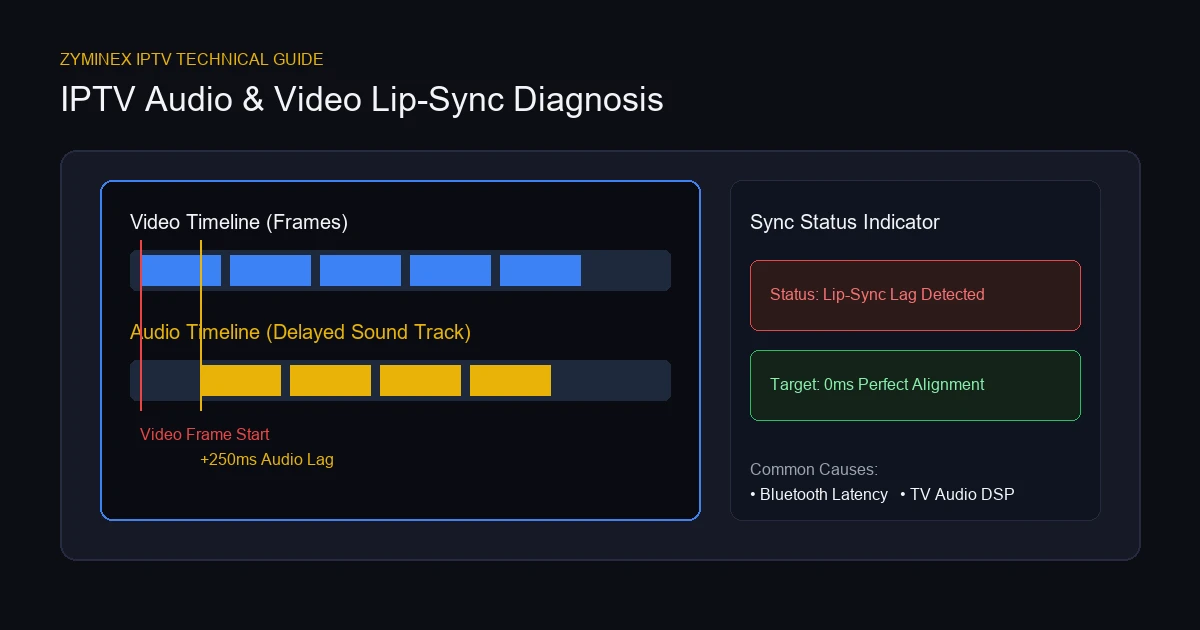
Audio/video synchronization refers to temporal alignment between video frames and audio samples during playback. In an ideal media chain, your IPTV player decodes video frames and audio packets simultaneously, presenting them to your display and speakers at the exact same millisecond.
When synchronization fails, the misalignment manifests in two distinct patterns:
- Audio Comes Before Video (Audio Lead): Sound is heard before the corresponding action appears on screen (for example, hearing a gunshot before seeing the flash, or hearing a voice before lips move).
- Audio Comes After Video (Audio Lag): Visual action occurs on screen before sound is heard (for example, seeing a player kick a ball before hearing impact, or watching lips move while sound trails behind).
Human perception is sensitive to timing. Humans detect audio leads of 45ms and audio lags of 125ms. When watching dialogue, news, or sports, even a 150ms offset creates a distracting IPTV lip sync problem.
Synchronization errors rarely mean your IPTV service is broken. Lip-sync issues usually stem from Smart TV post-processing, Bluetooth transmission latency, audio decoding bottlenecks, or misconfigured player settings.
Audio Delay vs Video Delay vs Buffering
To troubleshoot effectively, distinguish between the three primary playback anomalies encountered on streaming platforms:
Audio/Video Sync Problem
The stream plays continuously without freezing. However, the timing clock of the audio decoder and video decoder have drifted apart. Fixing this requires adjusting audio offsets, resetting decoders, or bypassing external audio processing.
Buffering
The stream halts unexpectedly, displaying a loading icon or stuttering repeatedly. This occurs when incoming network throughput drops below the stream's required bitrate. For buffering solutions, consult our Why Does IPTV Keep Buffering? guide.
Channel Switching Delay
Selecting a new channel results in a temporary delay while the app connects to the stream server. If you experience initial loading pauses, read our guide on slow IPTV channel switching.
| Playback Symptom | Video Motion | Audio Continuity | Root Cause |
|---|---|---|---|
| Lip-Sync Misalignment | Smooth & Continuous | Smooth & Continuous (Offset) | Decoder clock drift, Bluetooth lag, TV sound DSP |
| IPTV Buffering | Freezes / Pauses | Freezes / Stutters | Network congestion, ISP throttling, weak Wi-Fi |
| Zapping Delay | Initial Black Screen | Initial Silence | Stream initialization, DNS lookup, buffer size |
Experience ZYMINEX IPTV
Upgrade your entertainment with ultra-stable, anti-freeze streaming. Access premium live channels, sports, and VOD on all your favorite devices.
Why Is IPTV Audio and Video Out of Sync?
Resolving an IPTV sound delay requires understanding the digital pipeline processing live stream data. Incoming compressed multiplexed data must be demuxed, decoded, synchronized, and output across separate hardware channels.
IPTV Player Processing
The IPTV player app (such as Tivimate or IPTV Smarters) receives media packets, parses Presentation Time Stamps (PTS), and feeds video and audio streams to operating system decoders.
If the player app encounters buffer overflow or memory leaks, its synchronization clock can drift. This causes audio and video packets to render at slightly different speeds, producing IPTV video and audio out of sync errors.
Video Decoder Problems
Decoding compressed high-definition video (H.264 or H.265/HEVC) requires significant processing power compared to lightweight audio decoding (AAC or AC3).
- Software Decoding (SW): Uses the CPU to process video. On budget devices, high CPU utilization can delay video frame rendering while audio continues unhindered, causing audio to come before video.
- Hardware Decoding (HW): Offloads video processing to a dedicated GPU. If hardware decoding fails due to codec incompatibility, video frames may lag behind audio.
Audio Processing on the TV
Modern Smart TVs include digital signal processors (DSP) that apply audio enhancements before driving speakers:
- Virtual Surround Sound
- Auto Volume Equalization
- Dialogue Enhancement / Clear Voice
- Dolby Atmos Upmixing
These software enhancements require processing time. If your Smart TV takes 150 milliseconds to process spatial audio while rendering video instantly, IPTV audio delay on Smart TV will occur.
Bluetooth Audio Delay
Connecting Bluetooth headphones or wireless speakers is a common cause of IPTV audio lag. Bluetooth transmission introduces latency due to wireless encoding, packet buffering, and receiver decoding.
Standard Bluetooth SBC codecs introduce 150ms to 300ms of audio latency. Unless your device and headphones support low-latency codecs (such as aptX Low Latency), wireless audio will trail behind visual action.
IPTV Audio & Video Lip-Sync Diagnosis
Soundbars and AV Receivers
Connecting your TV to an external soundbar or AV receiver introduces additional decoding stages.
If your TV receives a multi-channel bitstream (like Dolby Digital) and passes it through an optical cable or HDMI ARC connection, the soundbar must decode the bitstream independently. Inappropriate passthrough settings create an IPTV sound delay.
HDMI and External Devices
When using external streaming devices (like an Amazon Firestick) connected via HDMI, handshake latency between the source device, TV display, and sound system can cause sync drift. Outdated HDMI cables or unpowered switchers can disrupt lip-sync communication flags.
Stream-Specific Encoding
Occasionally, a synchronization issue originates at the source stream encoder. If an IPTV provider captures a satellite feed where encoder hardware misaligned audio and video timestamps prior to distribution, every user watching that channel will experience identical lip-sync errors.
Device Performance
Underpowered hardware—such as older Smart TVs, first-gen streaming sticks, or cheap Android boxes with 1GB RAM—struggles under heavy media decoding loads. When RAM fills up or background apps consume CPU capacity, the OS prioritizes audio playback over video frame rendering, leading to visual lag.
Network Instability
While internet bandwidth does not directly dictate lip-sync timing, severe network jitter and packet loss can cause transport stream demuxers to lose synchronization frames. If packet order becomes erratic, your player may drop corrupted video keyframes while continuing to play audio.
How to Tell Which Side Is Causing the Audio Delay
Diagnose whether lip-sync errors stem from your stream, IPTV app, device, or external audio hardware using these seven tests:
Test 1: Try Another Channel
Switch to five channels. If IPTV sound and picture are not synchronized on only one channel while others play perfectly, the issue is stream-specific.
Test 2: Try Another Program
Check whether lip-sync errors affect live channels, sports, or VOD movies equally to isolate media file encoding issues.
Test 3: Switch to TV Speakers
Disconnect Bluetooth headphones, optical cables, soundbars, and receivers. Route audio directly through internal TV speakers. If synchronization returns to normal, external audio equipment is responsible.
Test 4: Try Another IPTV Player
Install a secondary IPTV app from your device app store (such as Tivimate or IPTV Smarters). Load your playlist. If the secondary app plays in sync, your primary player configuration is responsible.
Test 5: Try Another Device
Test your IPTV subscription on a smartphone or tablet. If sync is perfect on mobile but delayed on your TV, the issue lies in your TV processor or hardware. For details, explore our guide on IPTV Works on One Device but Not Another.
Test 6: Compare Live TV and VOD
Check whether lip-sync errors affect live sports channels or VOD movies equally, helping pinpoint real-time encoder vs pre-rendered file issues.
Test 7: Compare Wired and Wireless Audio
If using Bluetooth, connect wired headphones directly to your device. If wired audio is synchronized while Bluetooth lags, wireless latency is confirmed as the root cause.
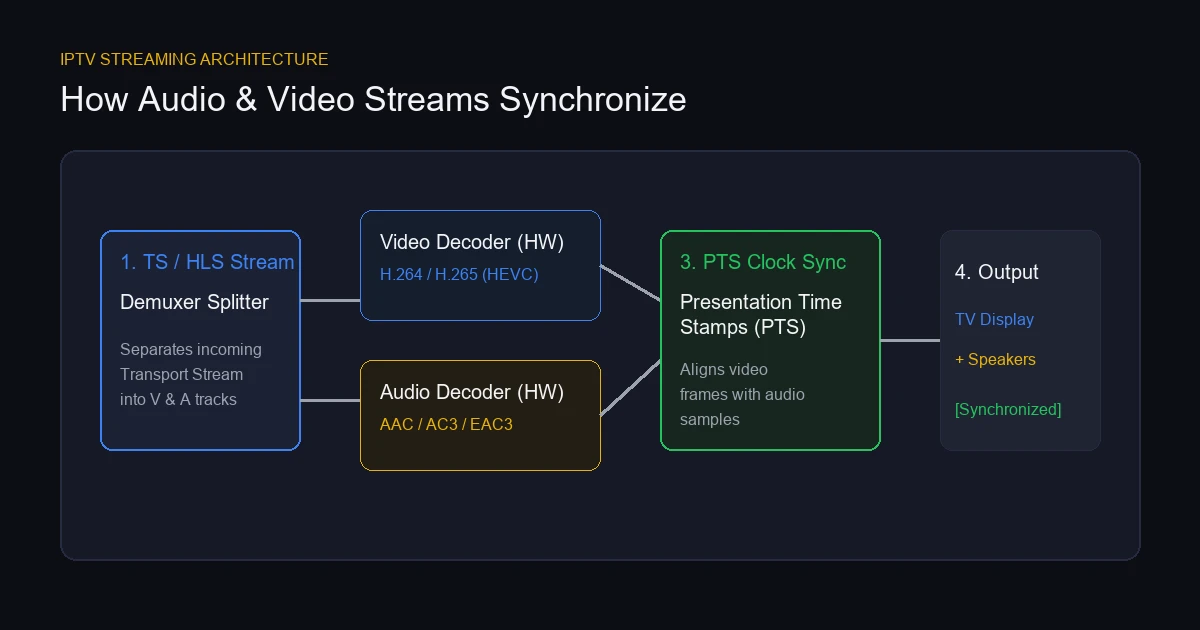 How IPTV Audio & Video Streams Synchronize
How to Fix IPTV Audio and Video Out of Sync
Follow these 15 practical steps to resolve lip-sync errors:
1. Restart the IPTV Player
Force close your IPTV app in device settings and re-open it to flush temporary buffers and reset the demuxer clock.
2. Restart the Streaming Device
Unplug your Firestick, Android TV box, or Smart TV for 60 seconds to clear system RAM and re-initialize decoders.
3. Update the IPTV Player
Install updates from your official device app store (Google Play, Amazon Appstore, or Apple App Store) to fix media bugs.
4. Clear the App Cache
Go to Settings > Apps > Your IPTV App > Clear Cache to remove temporary buffer data without deleting playlists or login details.
5. Check the Player's Audio Delay / Sync Setting
Top-tier IPTV apps like Tivimate include audio offset controls:
- Open the player menu during playback.
- Locate Audio Delay or Audio Offset.
- If audio is heard before video, apply a positive delay (+100ms to +300ms).
- If audio is heard after video, apply a negative delay (-100ms to -300ms).
6. Disable Excessive TV Audio Processing
Turn off TV audio enhancements like Virtual Surround, Auto Volume Leveling, Clear Voice, or Equalizer presets to eliminate processing latency.
7. Test TV Speakers
Disconnect soundbars and receivers. Set TV audio output to Internal TV Speakers to test baseline audio timing.
8. Test Without Bluetooth
Turn off Bluetooth on your device and disconnect wireless headphones. If lip-sync errors vanish, Bluetooth latency was the cause.
9. Check Soundbar / Receiver Settings
If using a soundbar via HDMI ARC/eARC or Optical cable:
- Locate AV Sync or Audio Delay on your soundbar remote.
- Adjust millisecond offset until speech matches lip movements.
- Set digital audio output format on your TV to PCM or Passthrough.
10. Check HDMI Setup
Plug your streaming stick directly into an HDMI port on your TV. Avoid unpowered switchers that disrupt eARC lip-sync communication.
11. Try Hardware Decoding
Set Video Decoder to Hardware (HW or HW+) in app settings to offload video processing to your GPU and prevent CPU overload.
12. Test Software Decoding
If hardware decoding causes stuttering on older devices, test Software (SW) decoding to resolve codec incompatibilities.
13. Restart the Router
Reboot your home router to clear NAT tables and eliminate local network jitter.
14. Test Another Network
Connect your streaming device to a mobile 4G/5G hotspot. If lip-sync errors disappear on cellular data, your home network may suffer from jitter.
15. Contact Support
If audio delay persists across all channels, players, and devices after troubleshooting, contact technical support with your device model, app version, and audio setup details.
At ZYMINEX IPTV, our high-bandwidth infrastructure is engineered for low latency and smooth decoding. Explore platform specifications on the ZYMINEX features page or reach out via our contact ZYMINEX support team.
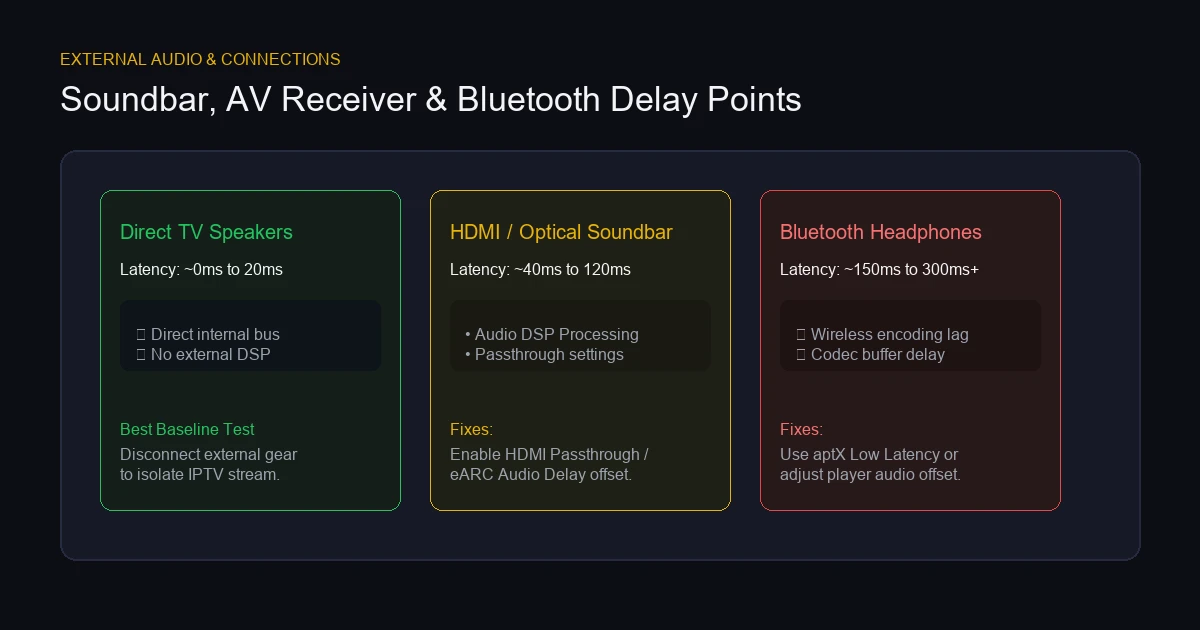 Soundbar, AV Receiver & Bluetooth Delay Points
How to Fix IPTV Lip-Sync on Smart TV
Integrated Smart TVs handle processing through internal chips. Follow this sequence for IPTV audio delay on Smart TV:
- Switch to Internal TV Speakers: Rule out external soundbars or Bluetooth receivers.
- Restart the TV (Cold Reboot): Unplug the TV from the wall for 1 minute to clear system memory.
- Update TV Firmware: Install the latest system software in TV Settings.
- Set Audio Output to PCM / Passthrough: Change Digital Audio Output from Auto to PCM or Direct Passthrough to bypass TV re-encoding.
- Disable Surround Effects: Turn off TruSurround, Dolby Atmos upmixing, or volume levellers.
- Adjust TV AV Sync Offset: Use the built-in "AV Sync Adjust" slider in TV sound settings.
- Reinstall IPTV App: Delete and reinstall your player app from the official TV app store.
Check compatibility and setup instructions on our ZYMINEX supported devices page.
How to Fix IPTV Audio Delay on Firestick
Amazon Firesticks are compact devices requiring clean memory management to prevent IPTV audio delay on Firestick:
- Restart Firestick: Go to Settings > My Fire TV > Restart, or hold Select and Play/Pause together for 5 seconds.
- Adjust Firestick Audio Sync: Use Amazon Fire OS audio calibration via Settings > Display & Audio > Audio > AV Sync Tuning.
- Match Original Frame Rate: Go to Settings > Display & Audio > Display and set Match Original Frame Rate to ON.
- Clear App Cache: Go to Settings > Applications > Manage Installed Applications > Your IPTV App > Clear Cache.
- Free Up Internal Storage: Maintain 1.5GB of free storage on your Firestick. Learn setup in our ZYMINEX installation guide.
- Avoid Unofficial APKs: Download apps from the official Amazon Appstore to ensure compatibility with Fire OS decoders.
IPTV Audio Delay When Watching Live Sports
Audio/video synchronization errors are noticeable during sports broadcasts, where hearing commentary before seeing action ruins the experience.
Live sports feeds present unique sync challenges:
- High Frame Rates (60fps): Sports channels stream at 50fps/60fps, requiring twice as many video frames to decode per second compared to 24fps movies.
- Real-Time Feeds: Live links encode stadium commentary on the fly.
If sports channels exhibit audio delay:
- Verify whether the delay affects all channels or only specific sports networks.
- Switch your player's video decoder to Hardware (HW) to handle 60fps video rendering efficiently.
- Adjust your IPTV player's Audio Delay control by -150ms to match visual action.
When the IPTV Stream Itself May Be Out of Sync
While 85% of lip-sync issues relate to local TV sound processing, Bluetooth latency, or player buffer drift, stream-side errors can occasionally occur.
Attribute lip-sync errors to the stream source if:
- The Error Affects Only One Channel: All other channels play in perfect sync on the same device and player.
- Identical Delay Across Devices: Opening the channel on a Smart TV, phone, and PC yields the exact same offset.
- Identical Delay Across Networks: The lip-sync error persists on home fiber broadband and 5G mobile data.
- Identical Delay on TV Speakers: Disconnecting external soundbars and Bluetooth receivers does not alter timing offset.
If diagnostic testing points to a stream-side encoding error, note the channel name and report it to support so engineers can re-sync the channel relay node.
Quick IPTV Lip-Sync Checklist
Use this scannable checklist whenever sound and picture fall out of alignment:
- Test Another Channel: Determine if the delay is channel-specific.
- Disconnect Bluetooth: Rule out wireless headphone latency.
- Switch to TV Speakers: Disconnect soundbar/AV receiver temporarily.
- Restart IPTV App: Force close and re-open the player application.
- Power Cycle Device: Unplug TV/Firestick for 60 seconds.
- Clear App Cache: Flush temporary buffer data in settings.
- Adjust Player Audio Offset: Use player menu to shift audio (+/- ms).
- Set Video Decoder to HW: Enable hardware GPU video decoding.
- Disable TV Audio DSP: Turn off virtual surround and clear voice effects.
- Set TV Sound Output to PCM: Bypass TV audio re-encoding.
- Run Firestick AV Sync Tuner: Calibrate Fire OS audio alignment.
- Free Up Storage & RAM: Close background apps and uninstall unused software.
- Update App & OS Firmware: Install latest player and system updates.
- Contact Support: Report verified stream-side encoding errors.
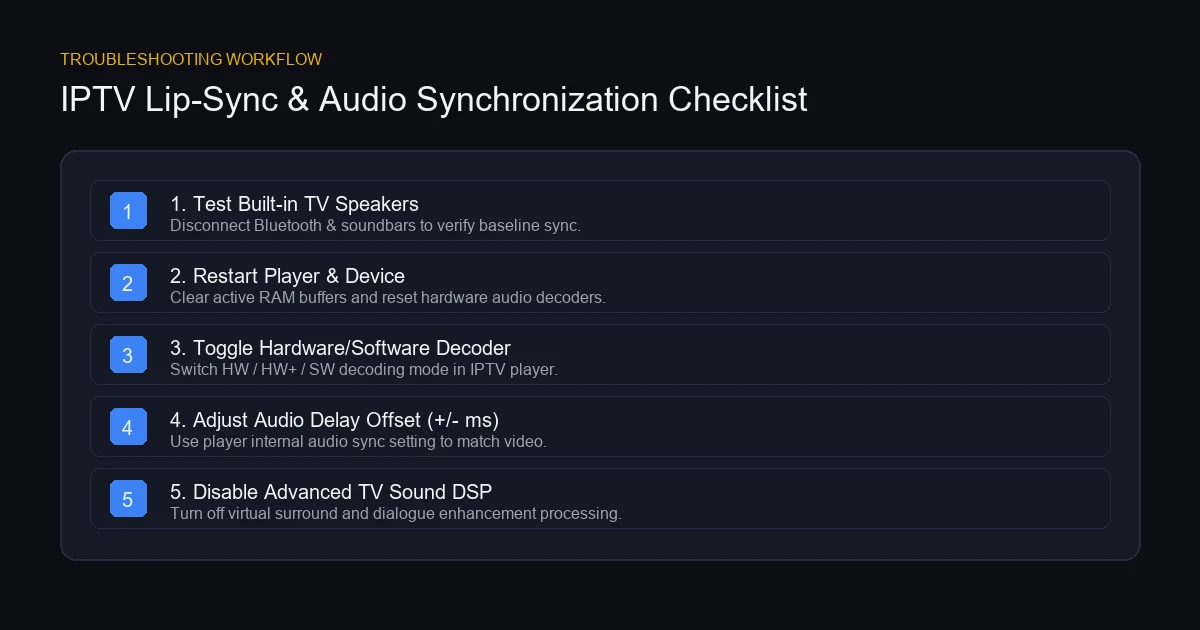 IPTV Lip-Sync & Audio Synchronization Checklist
Experience ZYMINEX IPTV
Upgrade your entertainment with ultra-stable, anti-freeze streaming. Access premium live channels, sports, and VOD on all your favorite devices.
Frequently Asked Questions
Summary & Next Steps
IPTV audio and video out of sync issues can disrupt viewing, but systematic troubleshooting usually resolves lip-sync drift quickly. By isolating your audio output hardware, disabling unnecessary TV sound processing, enabling hardware video decoding, and fine-tuning player audio offset settings, you can achieve crystal-clear, synchronized playback.
Ready for a high-performance streaming platform built on low-latency infrastructure? Explore our ZYMINEX pricing plans today. For step-by-step assistance, visit our comprehensive ZYMINEX FAQ, check our complete IPTV Not Working guide, or read our recommendations on how to choose the best IPTV service to optimize your home entertainment setup.