How to Watch IPTV on Apple TV: Best Apps & Complete Setup Guide (2026)
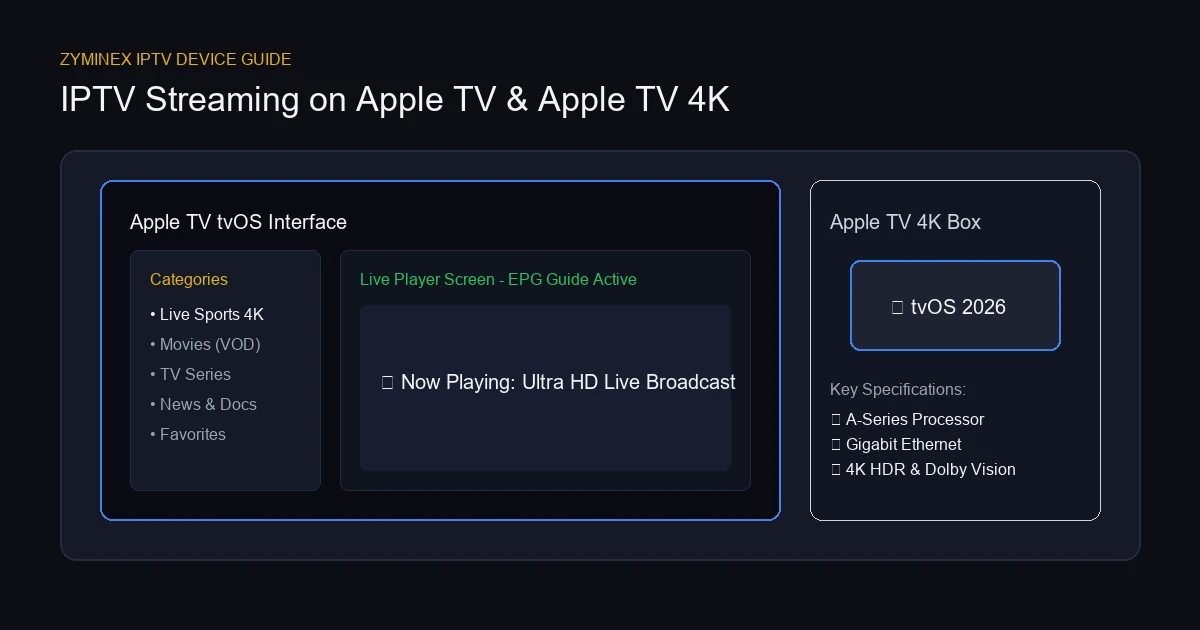
Apple TV and Apple TV 4K are among the most powerful media streaming devices available today. Equipped with fast A-series Bionic processors, high-performance GPUs, smooth tvOS navigation, and support for 4K HDR10 and Dolby Vision, Apple TV provides an exceptional platform for home entertainment.
However, many users purchasing an Apple TV for the first time wonder how to access live television and on-demand entertainment through internet protocol streaming. To watch IPTV on Apple TV, it is essential to understand the difference between an IPTV provider and an IPTV player application:
- IPTV Service: The provider supplying your stream credentials, channel playlists, EPG guide links, and Video on Demand (VOD) library access (such as ZYMINEX IPTV service).
- IPTV Player App: The software application downloaded from the official Apple App Store onto your Apple TV, responsible for parsing your playlist and rendering media streams.
Because tvOS operates within Apple's secure ecosystem, users must download legitimate IPTV player applications from the Apple App Store to load their playlist credentials. The setup process varies depending on the specific application chosen, but standard login methods like M3U playlists and Xtream Codes API are widely supported.
In this guide, ZYMINEX IPTV provides a complete setup walkthrough for IPTV streaming on Apple TV, comparing compatible player features, step-by-step installation instructions, M3U and Xtream Codes configuration, performance tuning, and Apple TV-specific troubleshooting.
Can You Watch IPTV on Apple TV?
Yes, you can easily stream IPTV on Apple TV and Apple TV 4K. Apple TV acts as an exceptional hardware media receiver running Apple's tvOS operating system.
When setting up IPTV on Apple TV, keep these key technical fundamentals in mind:
- No Custom Hardware Required: You do not need a dedicated proprietary IPTV set-top box. Apple TV replaces traditional cable receivers completely.
- App-Based Playback: Apple TV does not have a built-in IPTV player by default. Playback requires installing a third-party IPTV player application from the Apple App Store.
- Decoupled Service & App: Your IPTV subscription credentials (M3U or Xtream Codes API) operate independently from the player software. You can switch IPTV player apps on Apple TV at any time without altering your subscription.
- Hardware Decoding Advantage: Modern Apple TV 4K models feature powerful hardware HEVC/H.265 decoders, eliminating frame drops, video stuttering, and CPU overheating during high-bitrate 4K streaming.
Whether you own an Apple TV HD or the latest Apple TV 4K, your device possesses more than enough processing power to deliver smooth, instant channel zapping and 60fps live playback.
What You Need to Watch IPTV on Apple TV
Before beginning the setup process, ensure you have the following components prepared:
- Compatible Apple TV Device: An Apple TV HD (4th Generation) or any generation of Apple TV 4K running a current version of tvOS.
- Active Apple ID: An authorized Apple ID account signed into your Apple TV to access the official Apple App Store.
- High-Speed Internet Connection: A stable home broadband connection (minimum 25 Mbps for HD, 50+ Mbps for 4K streaming).
- IPTV Subscription Credentials: Authorized account details provided by your service provider, typically delivered as an M3U Playlist URL or Xtream Codes API credentials (server URL, username, and password).
- Compatible IPTV Player App: A tvOS-compatible IPTV application selected from the Apple App Store.
- HDMI & Display Setup: An HDMI 2.0 or 2.1 cable connecting your Apple TV to a 1080p or 4K television display.
IPTV Streaming on Apple TV
How IPTV Works on Apple TV
To successfully configure your device, it helps to visualize how streaming data flows through the Apple TV IPTV setup:
Authorized IPTV Service (ZYMINEX)
↓
Login Credentials (M3U / Xtream Codes API)
↓
IPTV Player Application (tvOS App Store)
↓
Apple TV Hardware (Decodes Video/Audio)
↓
TV Screen & Sound System Display
Understanding M3U Playlists
An M3U playlist is a text-based format containing direct URL streams for each channel, along with metadata such as channel logos, group categories, and track titles. When you enter an M3U URL into an Apple TV IPTV player, the app downloads the index file and populates your channel list.
Understanding Xtream Codes API
Xtream Codes API is a server-side database login method requiring three simple parameters: Server URL, Username, and Password. Xtream Codes automatically categorizes Live TV, VOD Movies, Series, and EPG TV guides into separate organized menus without requiring manual file indexing.
Understanding EPG (Electronic Program Guide)
The Electronic Program Guide (EPG) delivers real-time TV schedule data (typically in XMLTV format), showing current program titles, upcoming show times, descriptions, and episode information across your channel guide.
Best IPTV Apps for Apple TV in 2026
The Apple App Store for tvOS features several high-performance IPTV applications. Because Apple TV remote navigation relies on touchpad gestures or Siri Remote directional clicks, selecting a player with an intuitive interface is vital.
When evaluating an IPTV player for Apple TV, compare applications based on these essential criteria:
- tvOS Compatibility: Fully optimized for Apple TV remote navigation and native tvOS UI aesthetics.
- Login Protocol Support: Support for M3U URL playlists and Xtream Codes API login.
- EPG Integration: Seamless loading of XMLTV program schedules with automatic channel matching.
- Channel Organization: Logical grouping by categories, custom favorites list, and global search functionality.
- VOD Library Layout: Structured movie and TV series organization with poster art, plot summaries, and episode selectors.
- Playback Performance: Built-in hardware decoding support for H.264, H.265 (HEVC), AAC, and Dolby Digital audio.
Popular tvOS players available on the Apple App Store include IPTV Smart Player, GSE Smart IPTV, iPlayTV, IPTVX, and Smarters Player Lite. Always download software through the official Apple App Store to ensure security and compatibility.
How to Install an IPTV App on Apple TV
Setting up an IPTV app for Apple TV takes less than five minutes. Follow these step-by-step instructions:
Step 1: Open the App Store
Turn on your Apple TV and navigate to the home screen using your Siri Remote. Select the blue App Store icon.
Step 2: Search for a Compatible IPTV Player
Select the search tab at the top of the App Store screen. Type the name of your chosen tvOS player (such as "IPTV Player" or "iPlayTV") using the on-screen keyboard or Siri voice dictation.
Step 3: Install the App
Select the application from the search results to view its product page. Click the Get or Download button. If prompted, confirm the installation using your Apple ID password or Apple device authentication.
Step 4: Open the IPTV Player
Once installation completes, return to the Apple TV home screen and launch the newly installed IPTV player application.
Step 5: Select the Appropriate Login Method
Upon opening the player for the first time, you will be presented with a setup screen asking you to choose your playlist import method: M3U Playlist or Xtream Codes API.
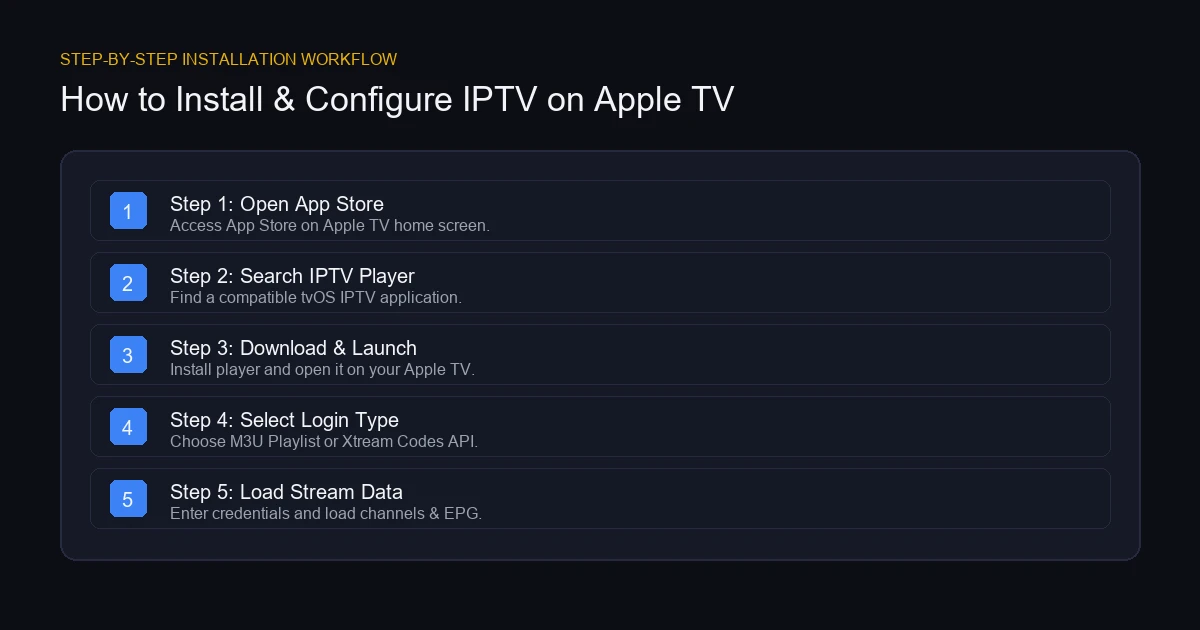 Step-by-step Apple TV IPTV Setup Process
How to Add Your IPTV Subscription to Apple TV
Once your IPTV player is installed, configure your subscription credentials using one of the two standard methods:
M3U Method
- Launch your IPTV player on Apple TV and select Add Playlist or Import M3U.
- Enter a descriptive name for your playlist (e.g., "ZYMINEX IPTV").
- Type the complete M3U URL provided in your subscription email into the M3U field. (Tip: Use the Apple TV Remote app on your iPhone or iPad to paste long URLs effortlessly).
- If your provider offers a separate EPG URL, enter it into the XMLTV / EPG field.
- Click Save or Import and wait for the application to download channels and metadata.
Xtream Codes Method
- Launch your IPTV player and select Xtream Codes API or Login with Xtream.
- Enter a name for your connection (e.g., "ZYMINEX Main").
- Enter the Server URL (including port number if specified, e.g., http://line.zyminex.tv:8080).
- Type your authorized Username and Password.
- Select Add User or Login. The player will automatically retrieve your live channel lists, VOD libraries, and program guide.
The exact layout of login menus may vary slightly depending on your application version. Never share your subscription credentials publicly.
Experience ZYMINEX IPTV
Upgrade your entertainment with ultra-stable, anti-freeze streaming. Access premium live channels, sports, and VOD on all your favorite devices.
How to Set Up EPG on Apple TV
An Electronic Program Guide (EPG) transforms your IPTV setup into a traditional TV guide experience, displaying channel schedules, show descriptions, and broadcast timing.
On Apple TV, EPG setup depends on your login method:
- Automatic EPG (Xtream Codes API): When logging in via Xtream Codes API, most tvOS IPTV apps fetch and synchronize EPG guide data automatically without manual configuration.
- Manual EPG (M3U Method): If your player requires a separate EPG link, copy the XMLTV URL from your provider and paste it into the EPG URL setting in your player menu.
Troubleshooting Common EPG Issues:
- Wrong Time Zone: If program schedules appear off by a few hours, navigate to your IPTV player settings and adjust the EPG Time Shift offset (+/- hours) to align with your local time zone.
- Missing Guide Data: Click Refresh EPG inside your player menu to pull updated XMLTV data from the server.
- Delayed Updates: Ensure your Apple TV has an active internet connection when launching the player so guide data can refresh in the background.
For comprehensive device setup details, visit our ZYMINEX IPTV installation guide.
How to Watch Live TV on Apple TV After Setup
Once your playlist and EPG finish loading, navigating your IPTV channels on Apple TV is seamless:
- Access Live TV: Select the Live TV or Channels tab from the player main menu.
- Browse Categories: Select folders such as Sports, News, Entertainment, or Regional Channels to narrow down choices.
- Use the EPG Guide: Open the Grid EPG to scroll through real-time channel schedules.
- Create Favorites: Press and hold the Select button on your Siri Remote over any channel to add it to your Favorites folder for instant access.
- Browse VOD Content: Select the Movies or Series tab to stream on-demand movies with full poster art and subtitle options.
Explore complete features on our ZYMINEX features page.
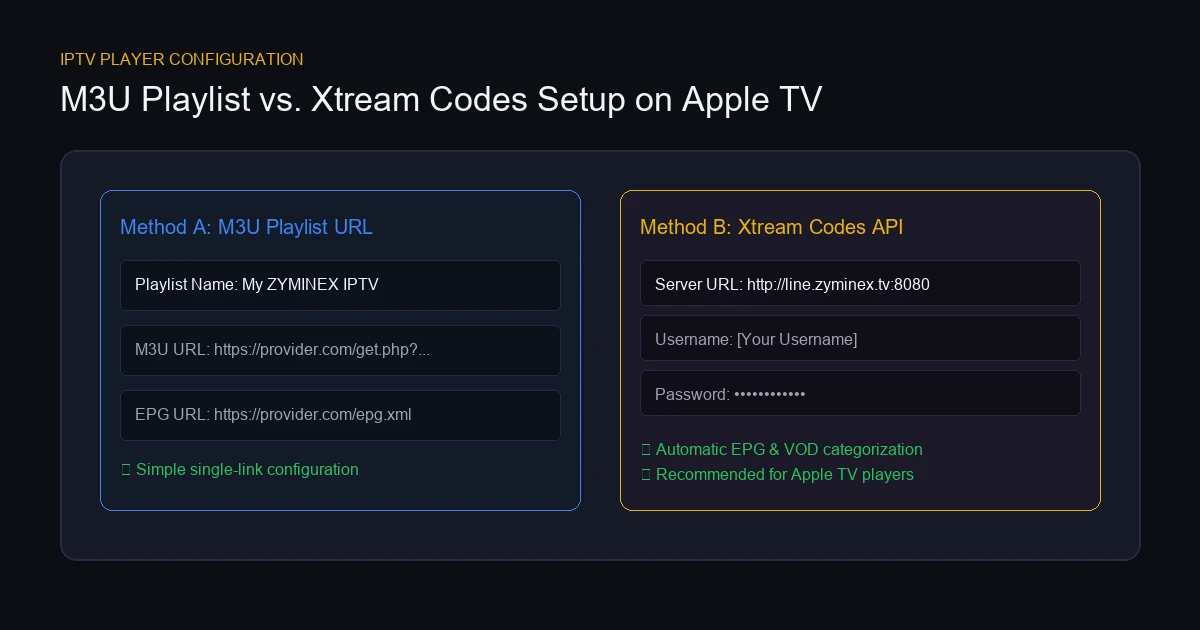 IPTV Player Configuration on Apple TV
How to Improve IPTV Streaming Quality on Apple TV
While Apple TV hardware is exceptionally fast, optimizing your local network and system configuration ensures flawless 4K streaming without frame drops:
Stable Internet Connection
Live IPTV streams require consistent network throughput. HD streams require a minimum of 25 Mbps, while 4K UHD streams require 50+ Mbps of unthrottled bandwidth.
Ethernet vs Wi-Fi
Whenever possible, connect your Apple TV 4K to your router using a Cat6 Ethernet cable. Direct wired Ethernet eliminates Wi-Fi signal interference, packet loss, and local wireless latency.
Router Placement
If using Wi-Fi, place your wireless router in an open, elevated location. Connect your Apple TV to the 5GHz Wi-Fi band rather than the crowded 2.4GHz band for higher throughput and reduced interference.
Keep Apple TV Software Updated
Navigate to Settings > System > Software Updates on your Apple TV and enable Automatically Update. System updates refine tvOS video decoders and network stack drivers.
Keep the IPTV App Updated
Open the App Store on Apple TV, go to Settings, and ensure Automatically Update Apps is turned ON so your player receives performance patches.
Close Unnecessary Apps
Double-click the TV/Control Center button on your Siri Remote to open the tvOS App Switcher. Swipe up on unused background applications to free up system memory.
Restart Apple TV
If playback stutters, go to Settings > System > Restart. Restarting clears system cache files and resets local RAM buffers.
Avoid Unnecessary Network Congestion
Pause heavy cloud backups, large PC game downloads, or peer-to-peer file transfers on your local network while watching live 4K broadcasts.
For general performance optimization, read our complete IPTV buffering guide.
IPTV on Apple TV 4K
Streaming IPTV on Apple TV 4K offers significant visual advantages over standard streaming sticks:
- A15 Bionic Processing: Handles massive M3U playlists containing 20,000+ channels and 80,000+ VOD titles without UI lag or crashes.
- Hardware HEVC & AV1 Decoding: Decodes high-bitrate 4K streams smoothly at 60 frames per second.
- Match Content & Frame Rate: Apple TV features native tvOS settings (Settings > Video and Audio > Match Content) that automatically adjust your TV's refresh rate and dynamic range (HDR10/Dolby Vision) to match the incoming broadcast format.
Note that a channel labeled "4K" depends heavily on source encoding bitrate. To evaluate subscription options, check our flexible ZYMINEX IPTV pricing plans.
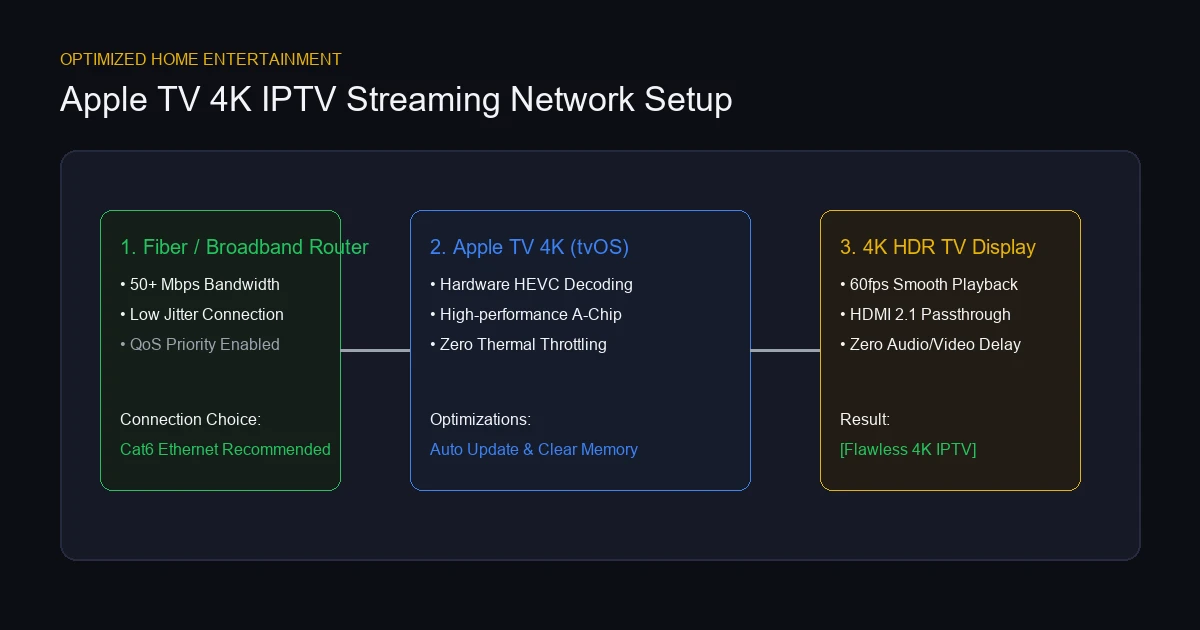 Apple TV 4K IPTV Streaming Setup
Common IPTV Problems on Apple TV
If you encounter technical issues while streaming on Apple TV, review these targeted troubleshooting steps:
IPTV App Does Not Load
If the player app crashes on launch, restart your Apple TV. If the crash persists, delete the application and reinstall it from the App Store.
Login Does Not Work
Double-check your credentials for typo mistakes. Server URLs, usernames, and passwords are strictly case-sensitive. Ensure no accidental trailing spaces were added during entry.
Channels Do Not Load
If channel categories appear empty, check whether your internet connection is active. Verify your account status with your provider to ensure your subscription remains valid.
Video Plays but Audio Does Not
Go to Apple TV Settings > Video and Audio > Audio Format and test changing output from Auto to Change Format > Stereo or Dolby Digital 5.1 to resolve decoder incompatibility.
Audio and Video Are Out of Sync
If dialogue does not match lip movements, read our dedicated guide on IPTV audio and video out of sync to adjust audio delay offsets.
IPTV Keeps Buffering
If playback pauses repeatedly, test switching between Wi-Fi and Ethernet, or reboot your home router. If channels load slowly when switching, review our article on slow IPTV channel switching.
EPG Is Missing
Verify your EPG URL in app settings or adjust the EPG Time Shift setting to match your region.
How to Fix IPTV Not Working on Apple TV
Follow this quick step-by-step diagnostic sequence to resolve playback failures:
- Check Internet Connectivity: Open YouTube or Netflix on Apple TV to confirm network connectivity.
- Restart Apple TV: Go to Settings > System > Restart.
- Restart IPTV App: Force close the app in tvOS App Switcher and re-open it.
- Verify Account Status: Confirm your subscription expiration date and authorized connection limits.
- Check Hardware Differences: If the service works on mobile but fails on TV, consult our guide on IPTV Works on One Device but Not Another.
- Test Alternate Player App: Install a secondary IPTV app from the App Store to test if the issue is app-specific.
- Contact Support: Reach out to technical support if issues persist across multiple players.
For comprehensive troubleshooting steps, consult our full IPTV troubleshooting guide or read advice on how to choose an IPTV service.
Experience ZYMINEX IPTV
Upgrade your entertainment with ultra-stable, anti-freeze streaming. Access premium live channels, sports, and VOD on all your favorite devices.
Apple TV IPTV Setup Checklist
Use this scannable checklist to verify your Apple TV installation:
- Apple TV connected to HDMI 2.0/2.1 port
- Signed into active Apple ID
- Ethernet or 5GHz Wi-Fi connected
- Compatible tvOS IPTV player installed from App Store
- Authorized M3U or Xtream Codes credentials ready
- Credentials entered without typos or trailing spaces
- Playlist loaded and categories populated
- EPG guide synchronized and time zone verified
- Live TV channel playback tested
- VOD movie playback tested (if included)
- Audio format output verified (Stereo/Pass-through)
- Siri Remote favorites shortcuts configured
Frequently Asked Questions
Summary & Next Steps
Setting up IPTV on Apple TV unlocks a premium home entertainment experience with crisp 4K picture quality, fast channel navigation, and reliable performance. By installing a compatible player from the Apple App Store, adding your authorized credentials, and connecting via Ethernet, you can enjoy seamless live television.
Ready to experience high-speed 4K streaming on Apple TV? Explore our flexible plans on the ZYMINEX IPTV pricing page. For additional assistance, consult our ZYMINEX IPTV FAQ or reach out directly to contact ZYMINEX support.